> ## Documentation Index
> Fetch the complete documentation index at: https://fillout.com/help/llms.txt
> Use this file to discover all available pages before exploring further.
# URL Parameters/Hidden fields
> Pass information to a Fillout form using hidden fields and personalize form filling experience.
## What are URL parameters?
**URL parameters** are information added to the end of a link. They start with a question mark `?` and use key-value pairs in the format `key=value`. Multiple parameters are separated by an ampersand `&`.
For example: [https://forms.fillout.com/t/9ofaEF4d54us?name=Jane+Doe](https://forms.fillout.com/t/9ofaEF4d54us?name=Jane+Doe)
Here, **name=Jane Doe** is the URL parameter.
## Video tutorial
### How URL parameters work
With URL parameters, you can pass information to a Fillout form, such as a respondent's name, email, or where they came from. This information is stored in hidden fields. You can use it to:
* Pre-fill fields with information you already know, like a respondent's email
* Display information in the form, such as a respondent's name
* Track where your form was shared via a **utm\_source** parameter (e.g., Facebook, Google, Instagram, etc.)
* [Write data to any integration](/help/url-parameters#map-it-to-your-integration-field) with mappings
## How to add a URL parameter or hidden field
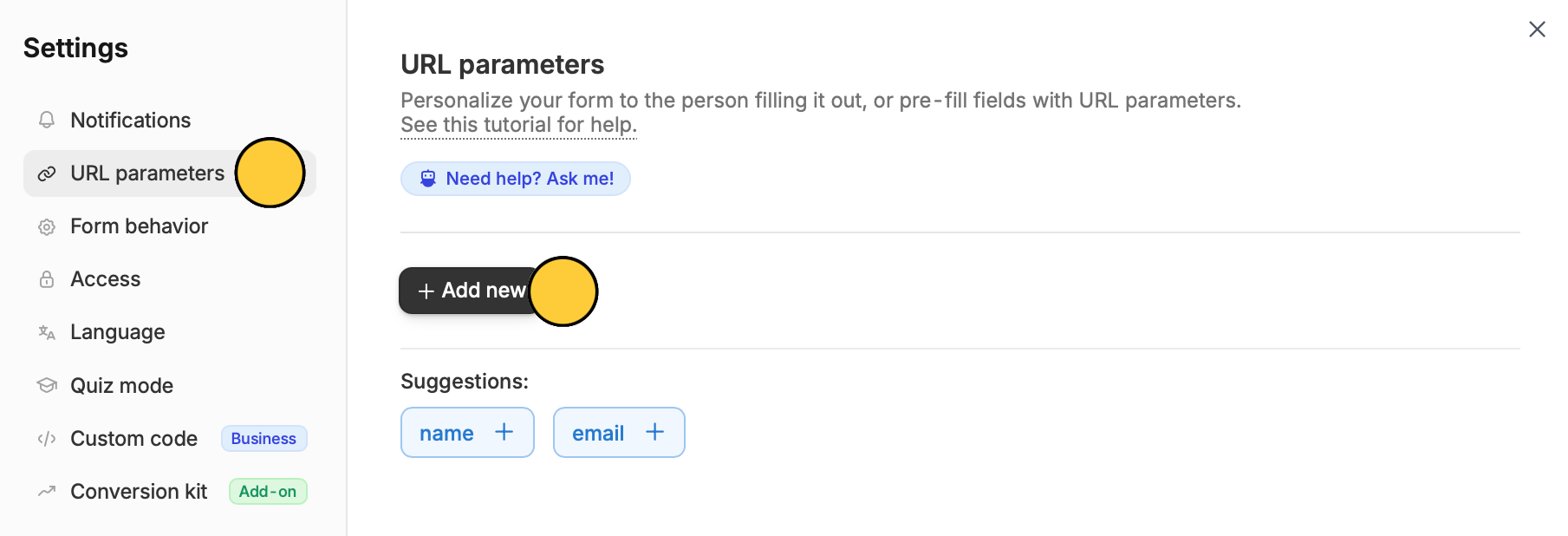
Click the `gear icon` on the top right.
Click `URL parameters` followed by `+ Add new`, then enter the parameter. In this example, we'll choose "name".
You can optionally provide a sample value for the parameter, if you'd like to see what your form looks like with that value being used (e.g. if you have some [hide/show logic](/help/conditional-hiding) based on it).
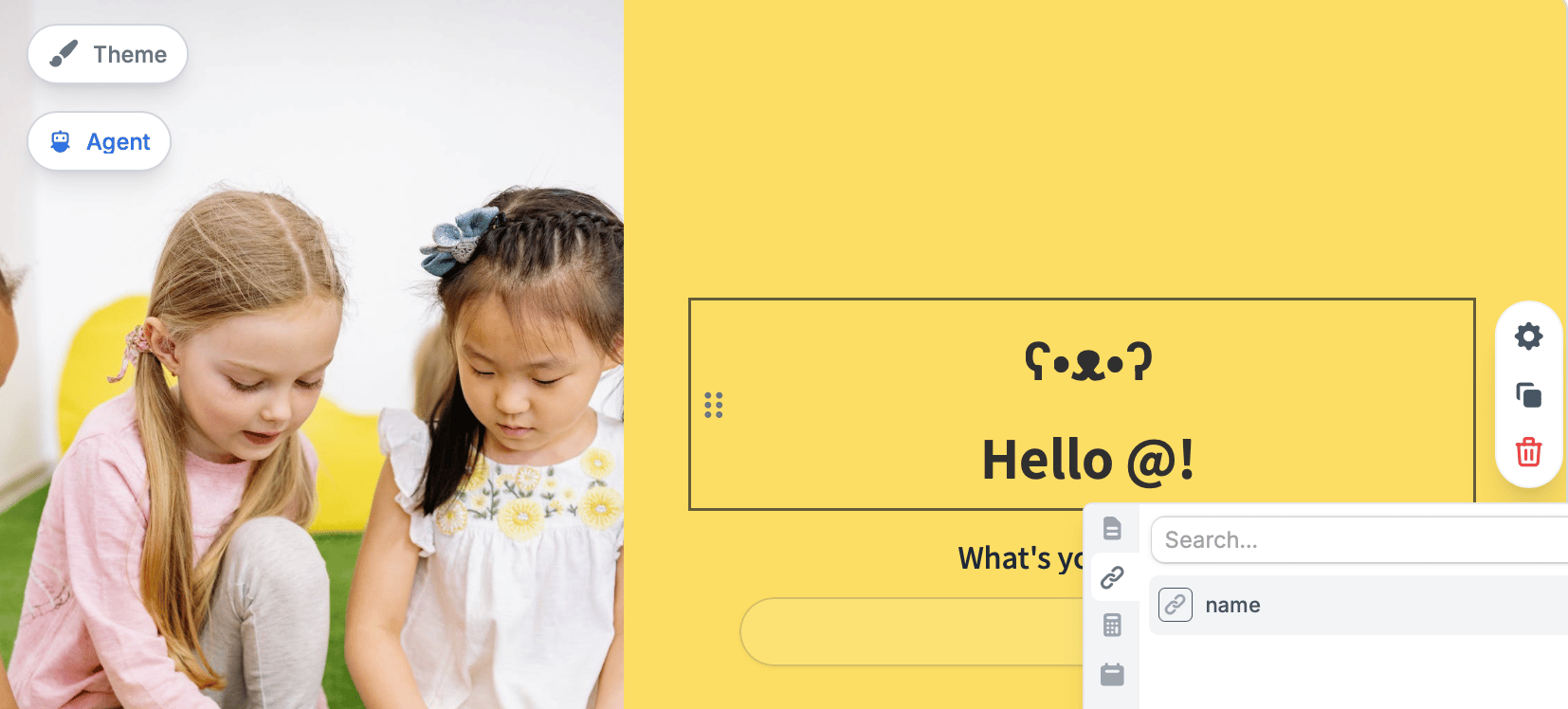
There are many ways you can use URL parameters as [listed above](/help/url-parameters#how-url-parameters-work). In this example, we'll show a respondent's `name` at the beginning of the form.
Type **@** and click the `link icon` , then choose your parameter.
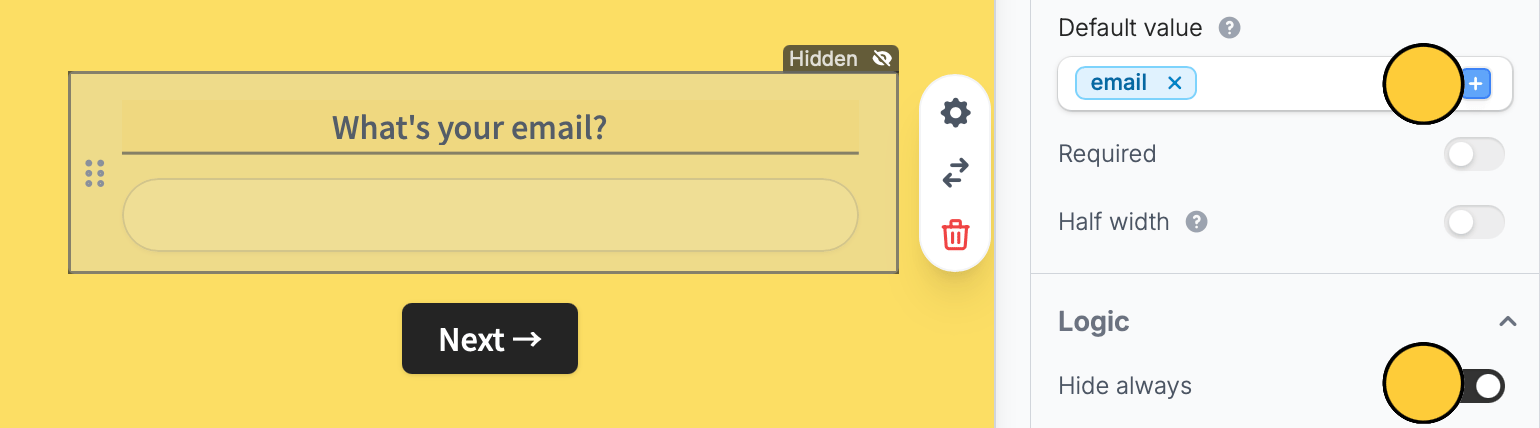
To prefill a hidden field, set the parameter as the **Default value**, and `Hide always`.
To activate a URL parameter, add its value to the form link. For example, if you have a name parameter, add the respondent's name at the end of the link: [https://forms.fillout.com/t/9ofaEF4d54us?name=jane](https://forms.fillout.com/t/9ofaEF4d54us?name=jane)
**Format URL parameter values**
* `+` - use a plus icon to space out values (e.g. Jane+Doe)
* `&` - use an ampersand to separate different types of parameters (e.g email=[jane@gmail.com](mailto:jane@gmail.com)\&name=Jane+Doe)
**Configure URL parameters with AI**
Need to set up URL parameters quickly? You can ask **Form Agent** to help you add and manage URL parameters or hidden fields. for your form. Learn more [here](https://www.fillout.com/help/form-agent).
## Send URL parameters to integrations
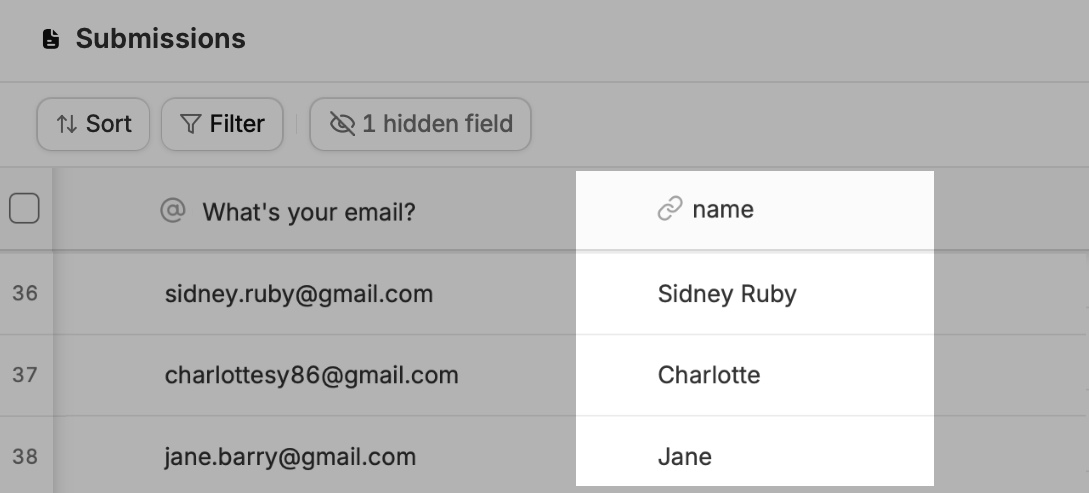
Fillout stores URL parameters by default on the Results page. Aside from the name and email, this can be language used, links shared on Facebook, Instagram, or LinkedIn to compare traffic, and many more.
You can also write these URL parameters to your database other types of integrations by [mapping](https://www.fillout.com/help/additional-integration-mappings#how-to-map-fields-manually) them. They are typically found when you click the `link icon` in the picker.
In some cases, the URL parameter may not show up in the picker. A workaround is to create a hidden field and map that instead. See step 4 below.
## Track the form language used in responses
If you haven't already, create one first following the [steps above](/help/url-parameters#how-to-add-a-url-parameter-or-hidden-field). In this example, we'll record the language used. Label the parameter as `lang`.
Enabling language translations is available on the **Starter** **plan** **and above**. More info [here](https://www.fillout.com/pricing).
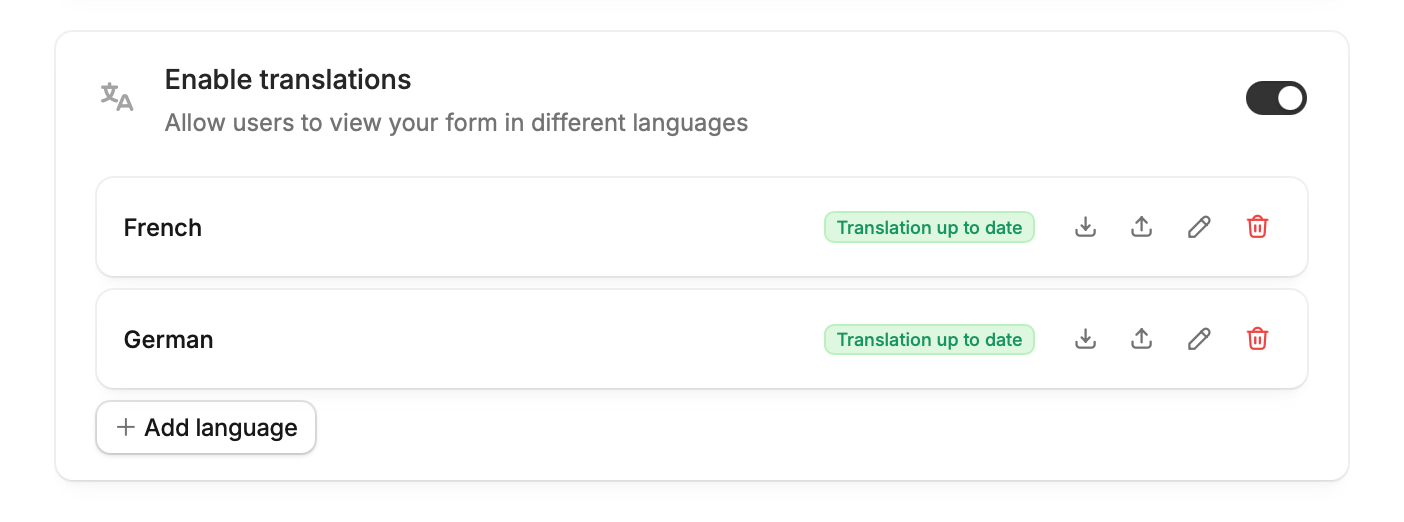
In your **form settings**, add the languages you'd like the form to be available in.
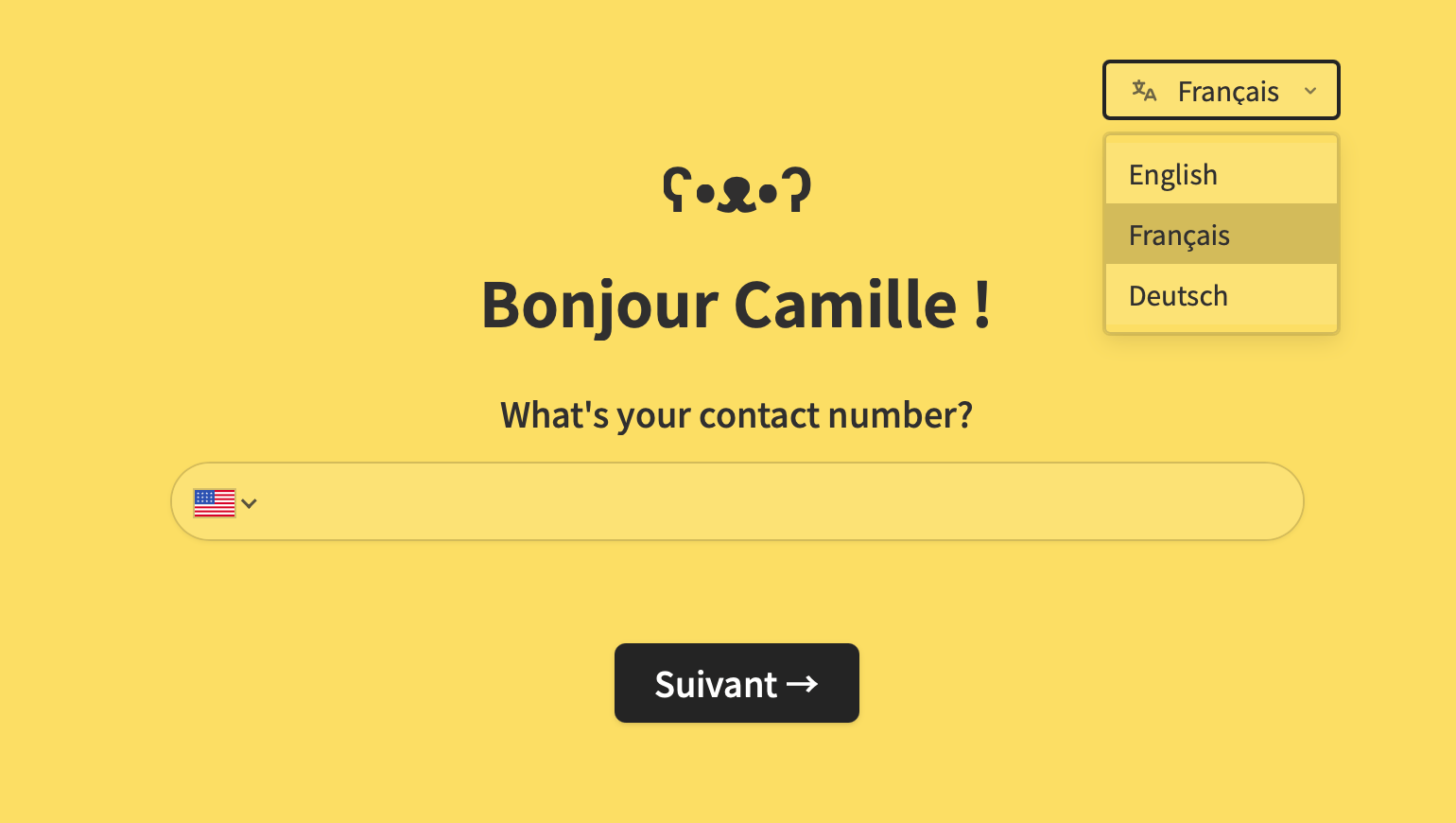
By default, respondents will see a language picker. This can be hidden using CSS if needed. More info [here](https://www.fillout.com/help/custom-css#css-classes-you-can-use).
If you haven't connected an integration yet, click `Integrate` on top to connect.
Under **Mappings**, link your URL parameter, which can be found by clicking the `link icon` .
In cases where the URL parameter can't be directly mapped, follow [step 3 of this section](/help/url-parameters#how-to-add-a-url-parameter-or-hidden-field) to prefill a hidden field with the `lang`parameter, then map this field to your integration.
By default, respondents can choose their language from a language picker. Their selection is recorded as its language code (e.g., French → fr). (See the list of language codes below.)
To preset a language, add its code to the URL. For example, [https://forms.fillout.com/t/9ofaEF4d54us?lang=fr](https://forms.fillout.com/t/9ofaEF4d54us?lang=fr). The form will automatically display in French.
If a respondent doesn't manually choose a language from the dropdown or if you don't preset a language in the URL, the language used will not be recorded.
| Language | Code | Language | Code |
| -------------- | ------ | ---------- | ----- |
| Arabic | ar | Japanese | ja |
| Catalan | ca | Korean | ko |
| Chinese (Simp) | zh | Nepali | ne |
| Chinese (Trad) | zh-CHT | Norwegian | no |
| Croatian | hr | Polish | pt-pl |
| Czech | cs | Portuguese | pt |
| Danish | da | Romanian | ro |
| Dutch | nl | Russian | ru |
| English | en | Serbian | sr |
| Finnish | fi | Sinhala | si |
| Filipino | fil | Slovak | sk |
| French | fr | Spanish | es |
| German | de | Swedish | sv |
| Greek | el | Thai | th |
| Hebrew | he | Turkish | tr |
| Hindi | hi | Ukrainian | uk |
| Hungarian | hu | Urdu | ur |
| Icelandic | is | Vietnamese | vi |
| Indonesian | id | | |
| Italian | it | | |
## Send data between forms
You can pass data from a main form to a subform using URL parameters so respondents won't need to re-enter the same information. Check out [this guide](/help/url-parameters-between-forms#send-data-between-forms-using-url-parameters).
## Other advanced features
Share data between forms with URL parameters.
Pre-populate fields based on previous inputs and more.
Insert previous answers into upcoming questions or fields.

 You can optionally provide a sample value for the parameter, if you'd like to see what your form looks like with that value being used (e.g. if you have some [hide/show logic](/help/conditional-hiding) based on it).
 To prefill a hidden field, set the parameter as the **Default value**, and `Hide always`.
 **Format URL parameter values**
* `+` - use a plus icon to space out values (e.g. Jane+Doe)
* `&` - use an ampersand to separate different types of parameters (e.g email=[jane@gmail.com](mailto:jane@gmail.com)\&name=Jane+Doe)
**Format URL parameter values**
* `+` - use a plus icon to space out values (e.g. Jane+Doe)
* `&` - use an ampersand to separate different types of parameters (e.g email=[jane@gmail.com](mailto:jane@gmail.com)\&name=Jane+Doe)
 You can also write these URL parameters to your database other types of integrations by [mapping](https://www.fillout.com/help/additional-integration-mappings#how-to-map-fields-manually) them. They are typically found when you click the `link icon`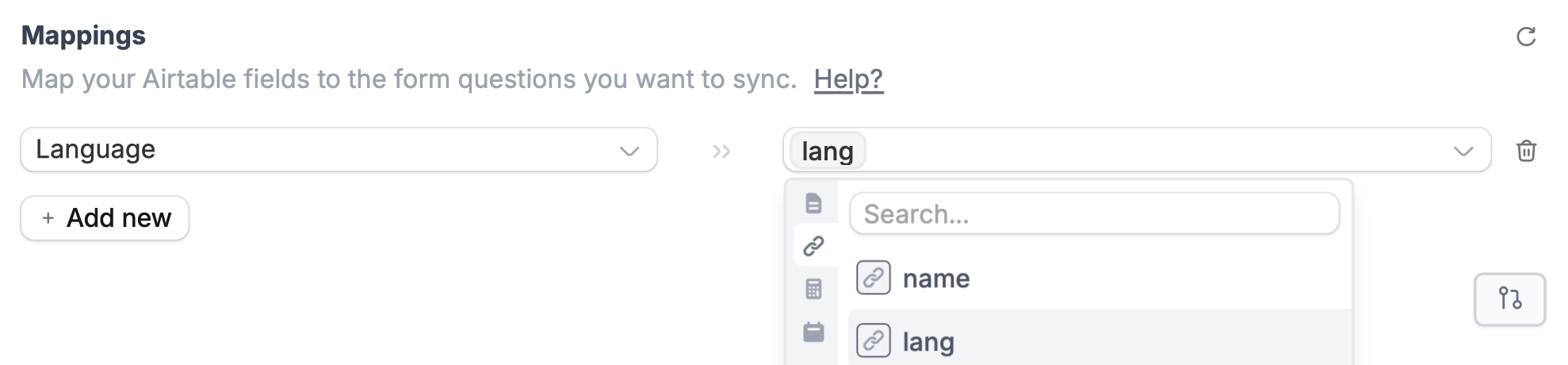

 To preset a language, add its code to the URL. For example, [https://forms.fillout.com/t/9ofaEF4d54us?lang=fr](https://forms.fillout.com/t/9ofaEF4d54us?lang=fr). The form will automatically display in French.