

How to set up
1
Create an event email reminder
On the left-hand panel, scroll down to Notifications and toggle the 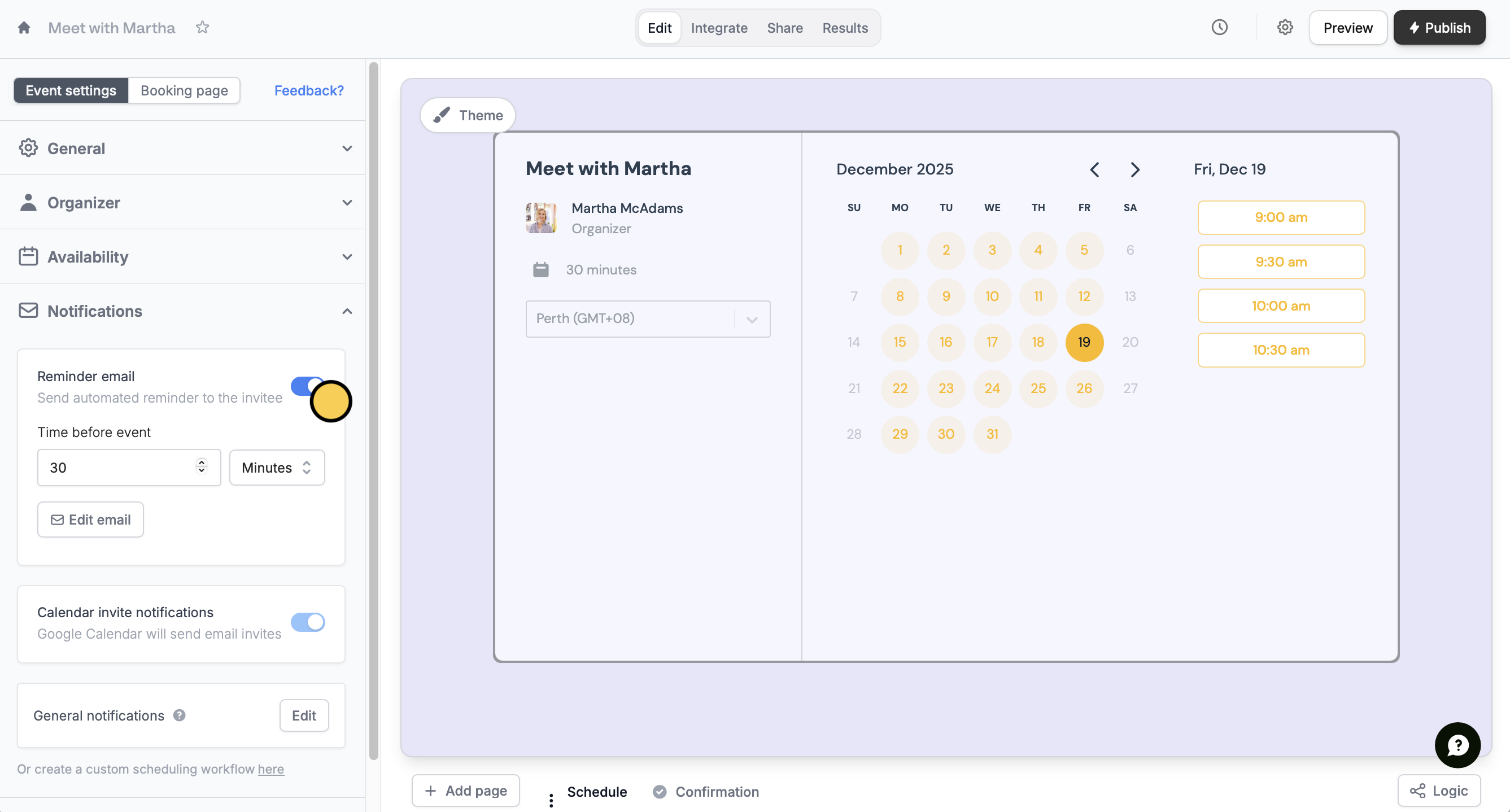
Reminder email switch. Enter when you want the reminder to be sent.Alternatively, you can use our Event email reminder to invitees Fillout workflow template.Edit email to format the contents and theme of your email.2
Style your email
You can opt to use a different Theme or Style. See more ways to customize the look here.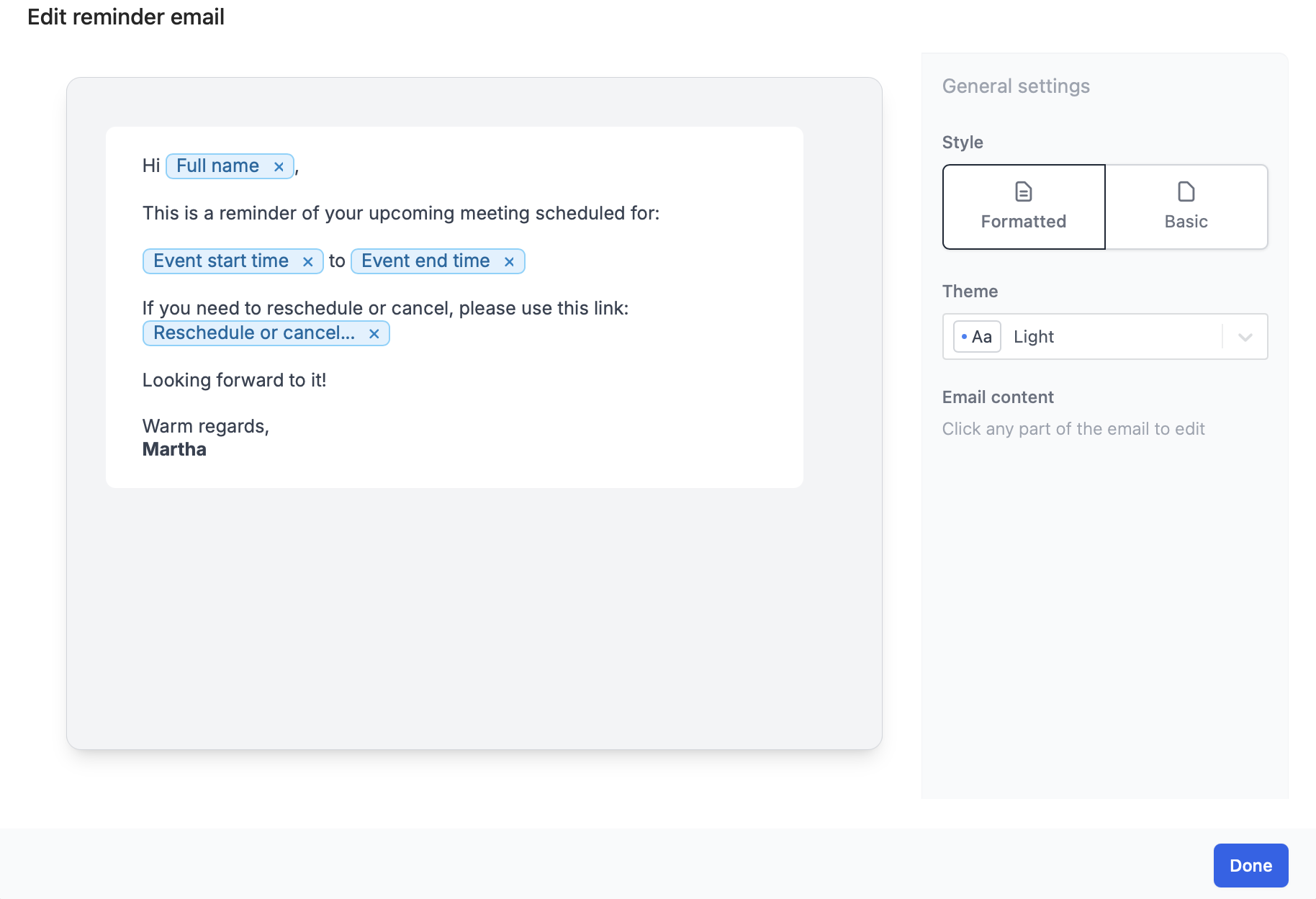
3
Reference fields (Optional)
You can reference scheduling details or other form answers by typing @ or clicking the 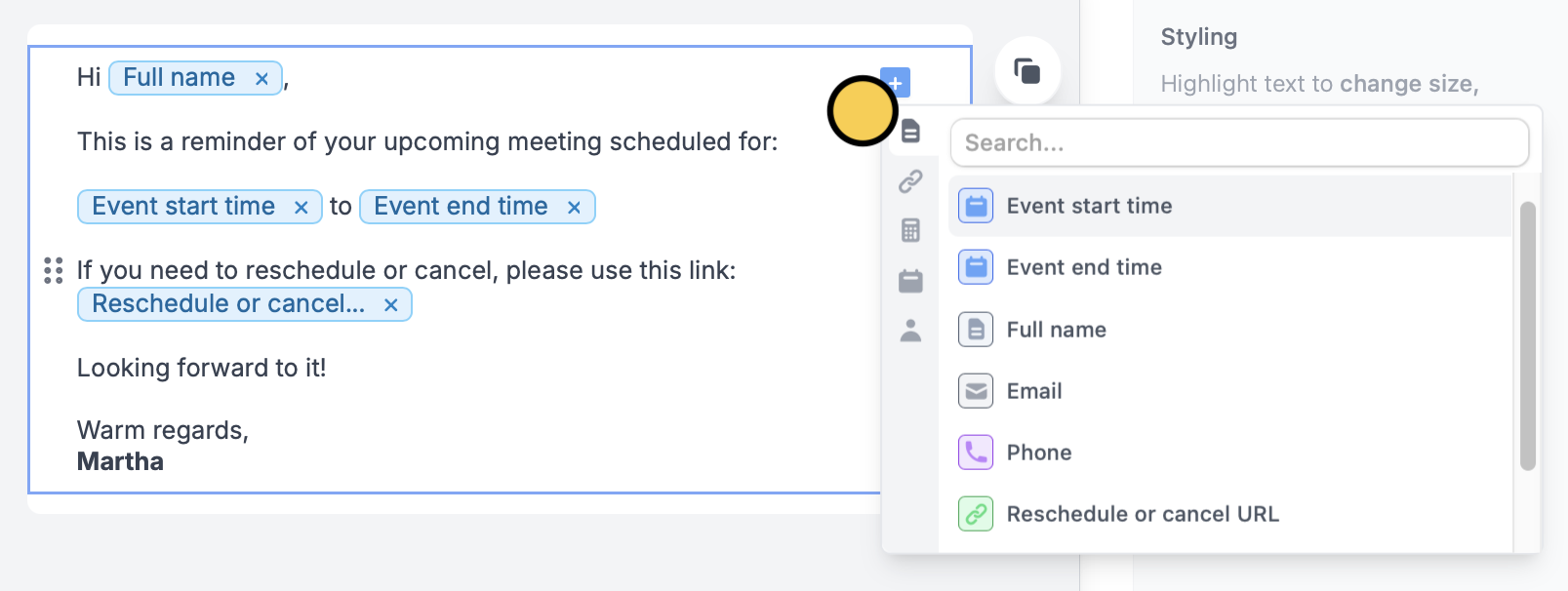
plus icon , and choosing the specific field or question.What’s in the reminder email
By default, the reminder includes the invitee’s full name, the meeting start and end time, and a link to reschedule or cancel. The Google Meet, Zoom, or Teams link isn’t included.Custom reminder emails are available starting on the Pro plan. For more details on pricing, click here.
Related articles
Scheduling actions
Send reminders to yourself and other hosts.
Custom emails
Automate sending, pipe previous answers, and style your email.
Respondent emails
Email respondents a copy of their answers that can be edited.