

What is a progress bar?
A progress bar lets respondents know how much of the form has been completed and how much remains. By default, respondents will see a progress bar at the top of the form, shown as a horizontal line (like the one in the photo below). Alternatively, you can display a multi-step progress bar.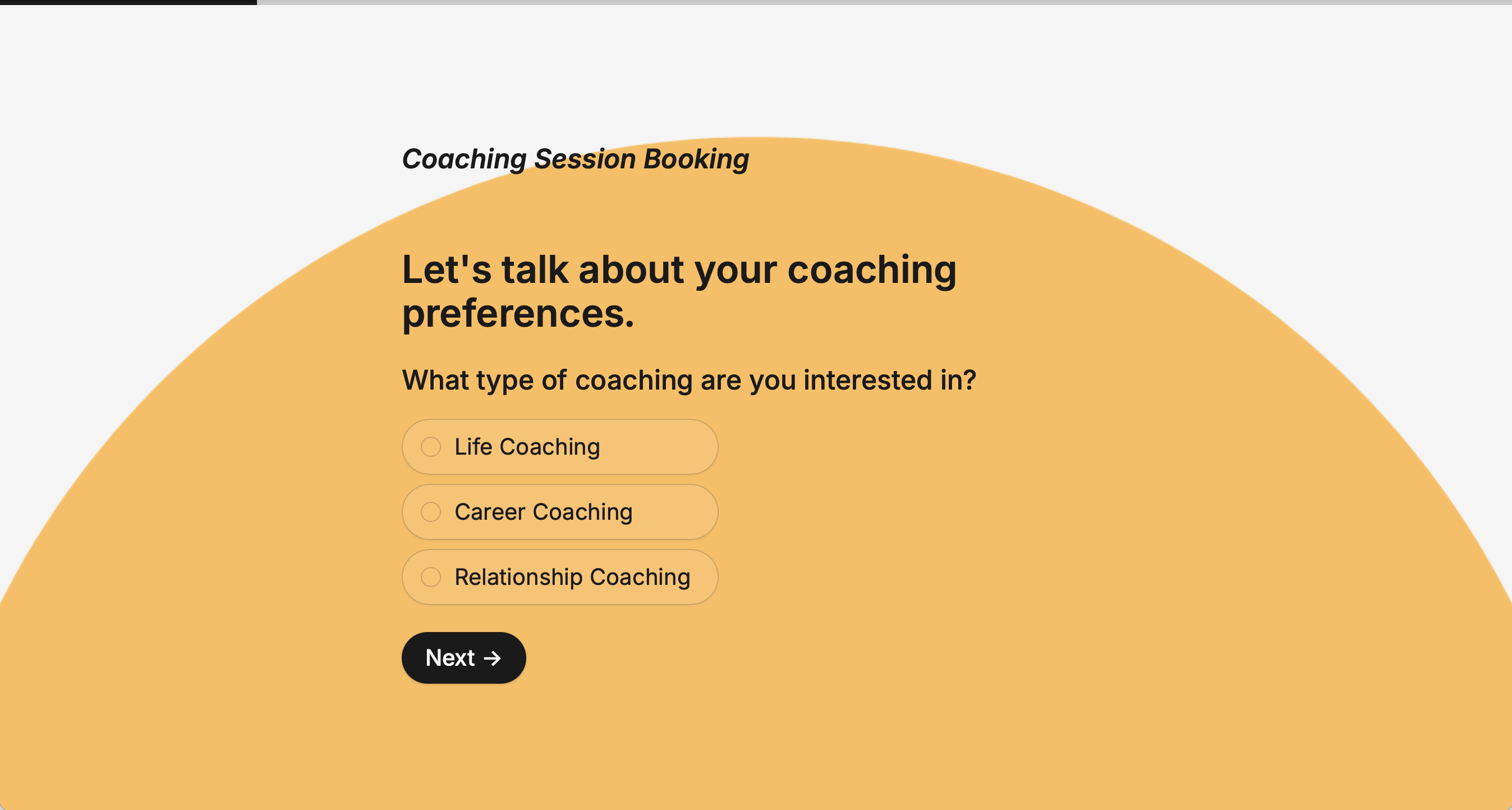
How to change the color
ClickTheme to open the Form designer. Then, change the Primary color.
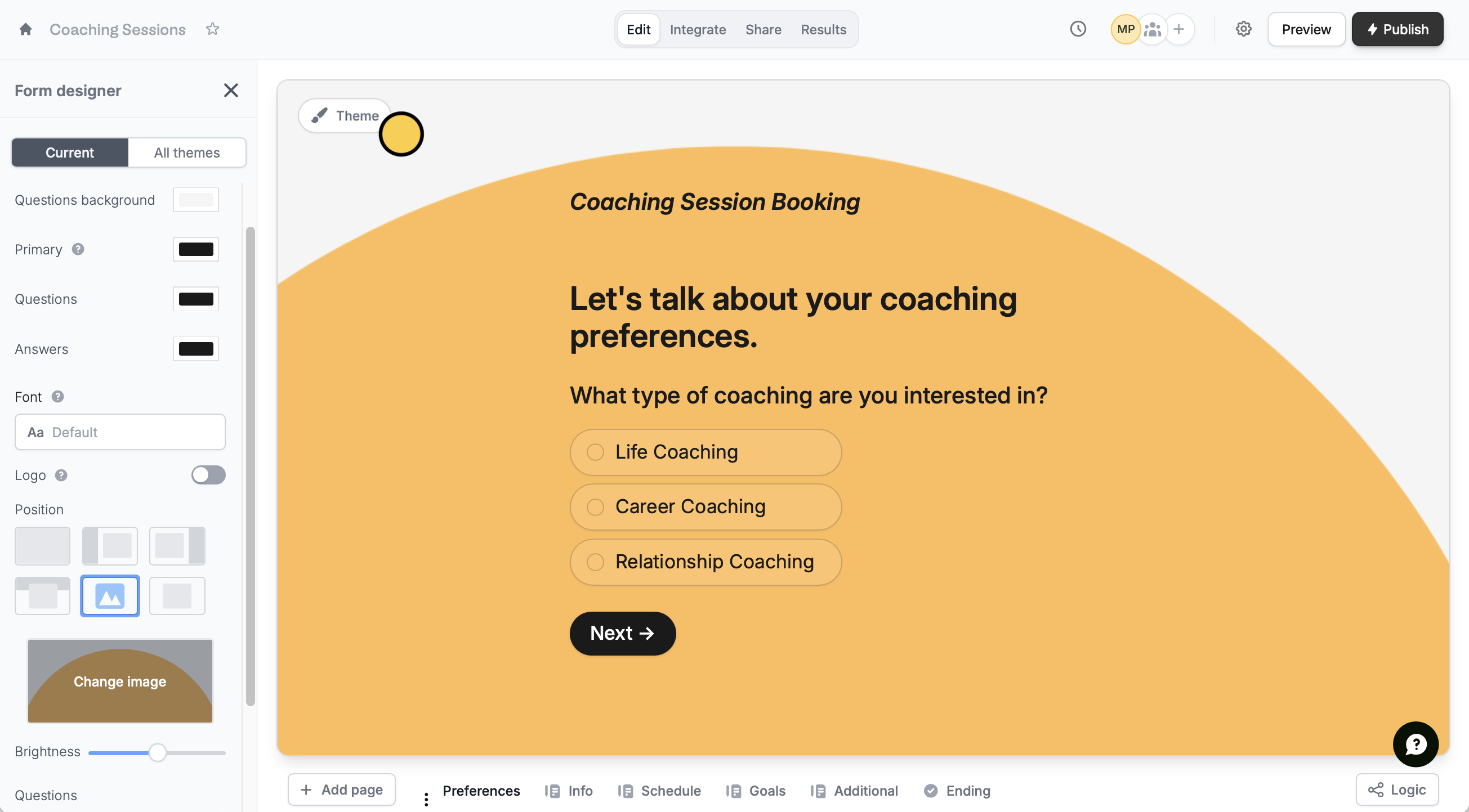
Changing the primary color will also update your button color. If you want your button to stay the same, adjust it directly in its settings. More info here.
Use a multi-step progress bar
1
Add a progress bar field
On the left-hand panel of your form, click 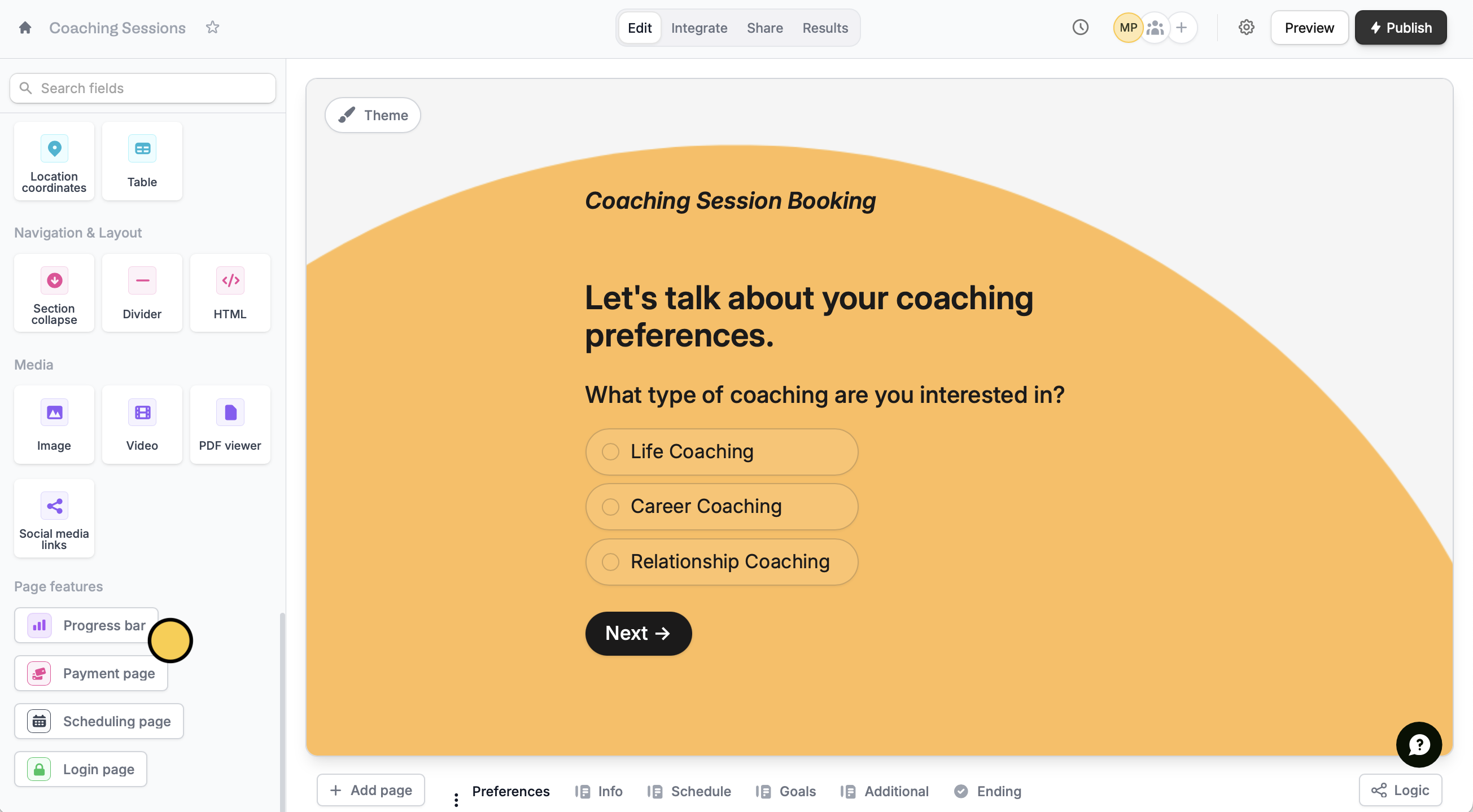
Progress bar.2
Customize your progress bar
Click the progress bar to customize it. This will open the right-hand panel where you can configure its settings.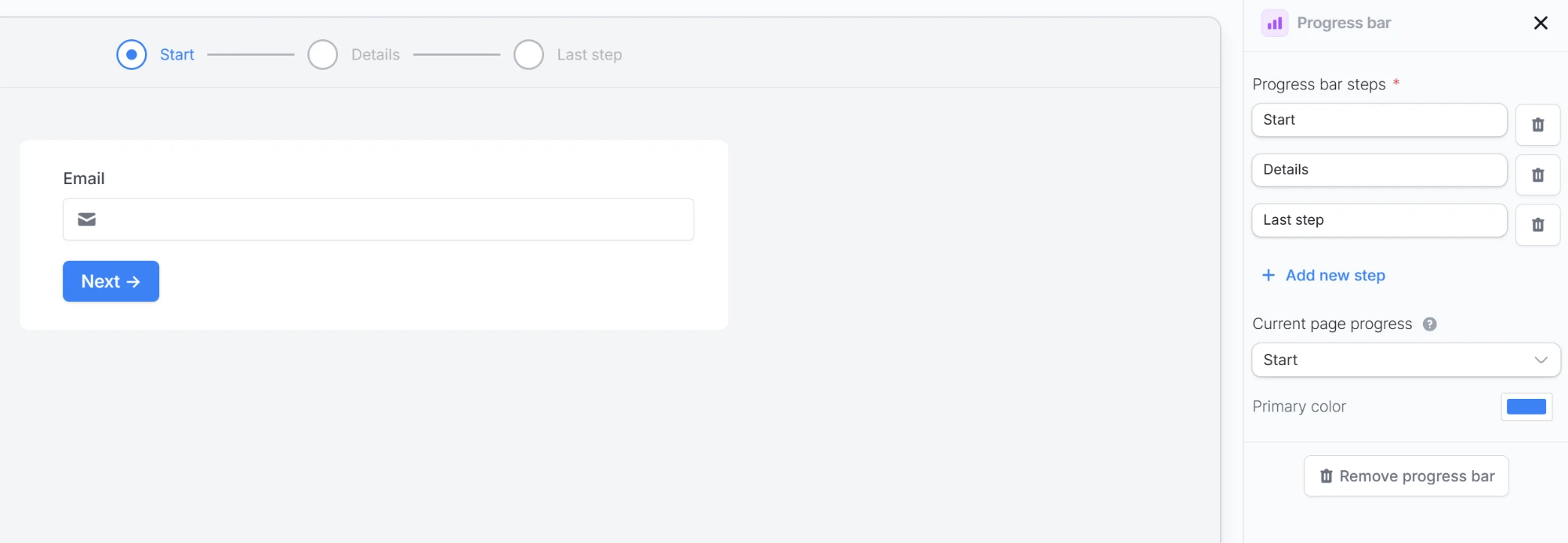
+ Add new steps if needed. After the fifth step, you’ll see Max number of steps added. To cover more pages, assign several pages to the same step.3
Reference steps
Navigate to each page (except Cover and Ending) and choose which step they should go into in Current page progress.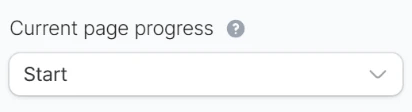
Remove the progress bar
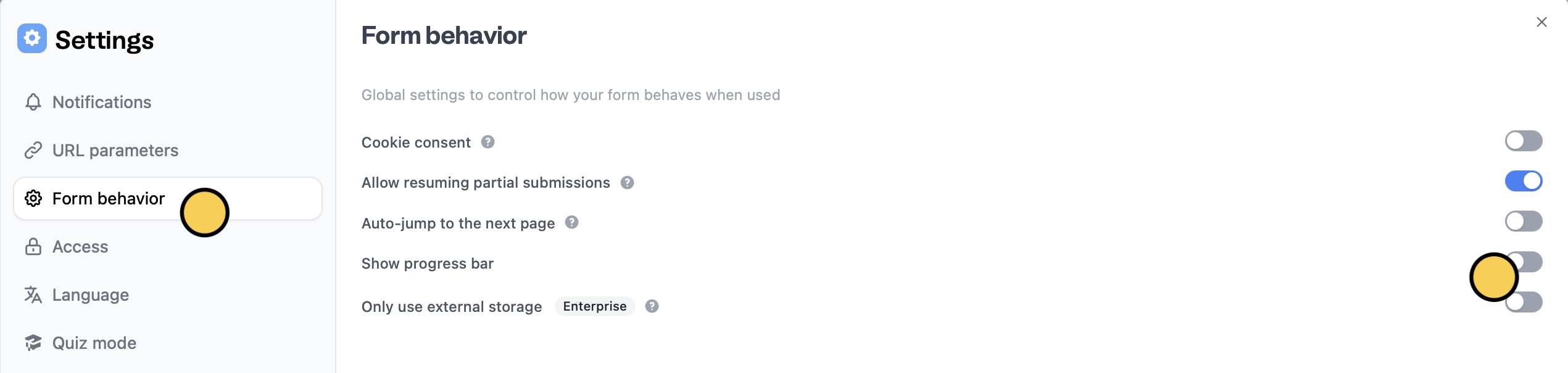
If you used a multi-step progress bar, you can remove it in the right-hand panel. Either way, you can click form settings on the upper right area.
Form behavior and untoggle the Show progress bar switch.
Related articles
Themes
Select from hundreds of themes or create your own.
Page layout
Edit the position of your form’s fields and background image.
Auto jump
Auto-redirect to the next page after making a selection.