

What is a custom domain?
A custom domain is a unique web address to replace your web form’s default URL, enhancing brand visibility and trust. It adds professionalism, improves SEO, and ensures a seamless user experience.This feature is available on the Fillout Business plan and above, with one custom domain for forms per account. This includes subdomains of a domain you own, like
forms.yourcompany.com. For more details on pricing, click here.Video tutorial
How to add a custom domain
1
Open account settings
On the Fillout dashboard, click your 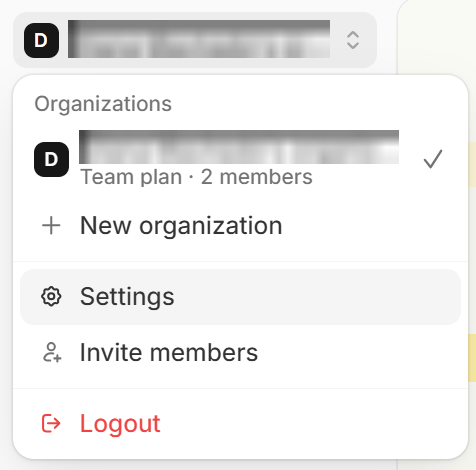
organization name in the upper left corner followed by Settings.2
Add domain
Navigate to 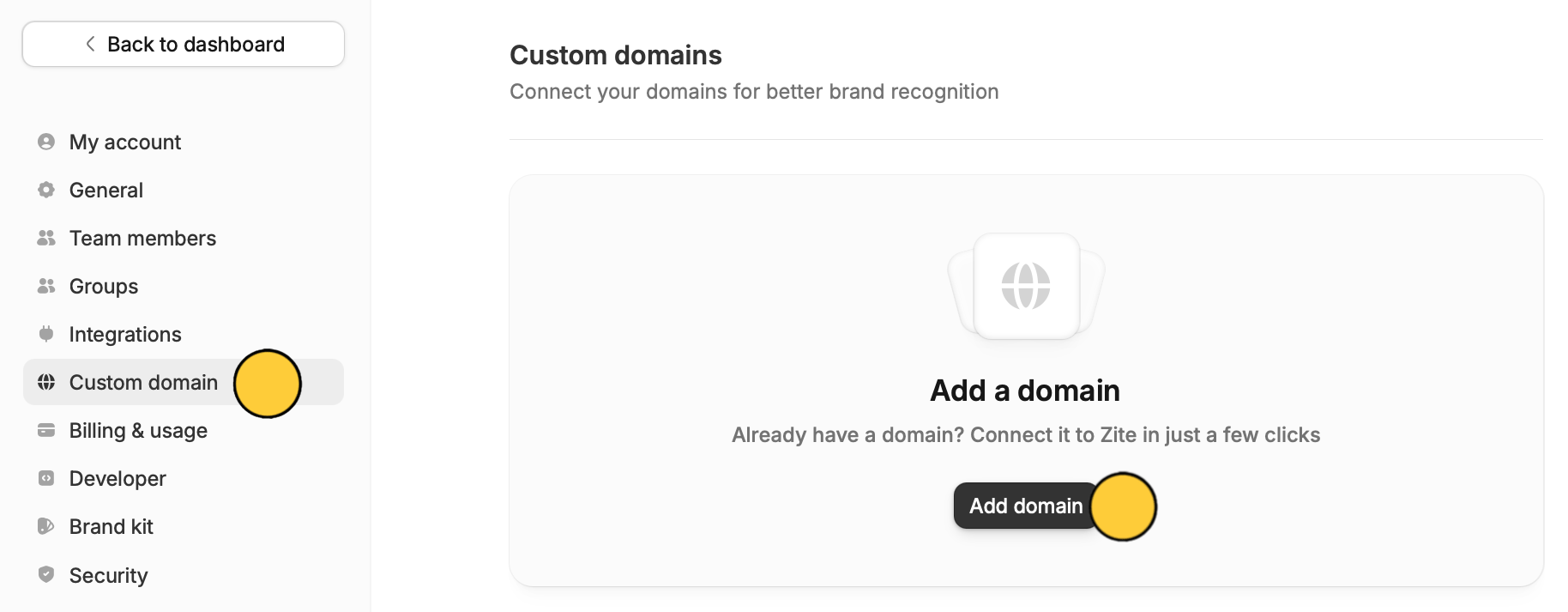
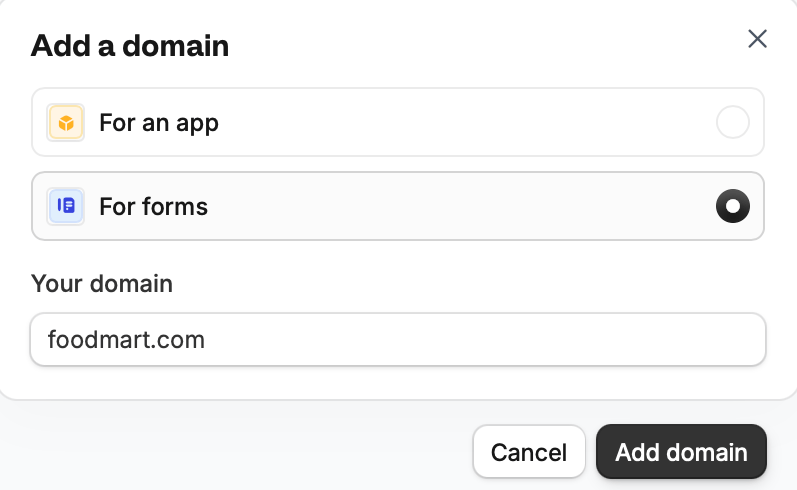
Custom domain and click Add.For forms and enter a subdomain of a domain you own, like forms.yourcompany.com. Root domains (yourcompany.com) and www aren’t supported. Any domain ending works, like forms.yourcompany.com.au or forms.yourcompany.co.uk.3
Set up DNS record
How to add the DNS record:
- Log in to your domain provider.
- Add the CNAME record as instructed in the Fillout dashboard. The name is the first part of your custom domain, and the value is
domains2.fillout.com. - Wait until the DNS records are verified (this can take anywhere from a few seconds to 12 hours). After you add a domain, Fillout checks it again every few seconds for ten minutes. To check again later, click the
refresh iconnext to the domain.
forms.yourcompany.com:Until your domain is connected, it shows as Pending, and its details list what’s missing under Not connected yet, like Could not find CNAME record.You’ll know the setup is complete once the Pending status is gone.That’s it! Now, all your form links will begin with your domain name. You can see this in the
Share page.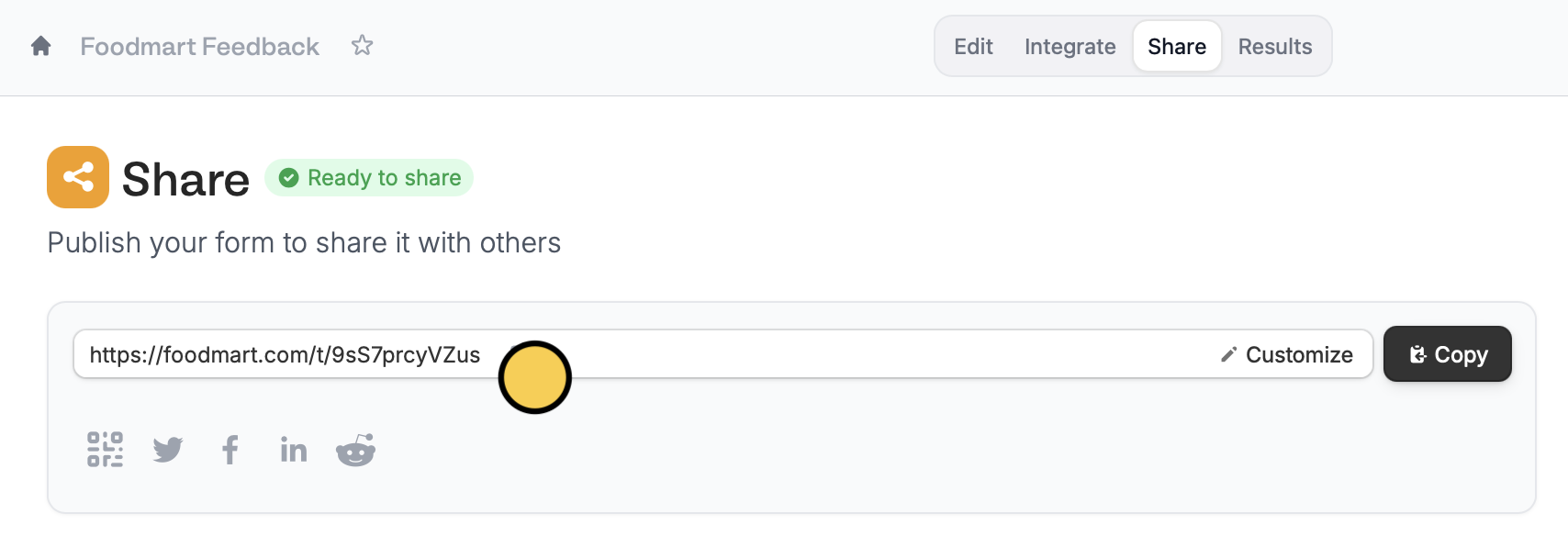
Customize the link ending
You can also change the slug. Check out this quick guide.Custom domain vs. custom subdomain
A custom subdomain changes the first part of your form link while staying on Fillout’s domain. For example,foodmart.fillout.com instead of the default forms.fillout.com (or form.fillout.com for some accounts). Custom subdomains always end in fillout.com, don’t require any DNS setup, and are available on all plans. Learn how to set one up here.
A custom domain uses a domain you own, like forms.foodmart.com. This lets you share forms under your own brand instead of “fillout.com”, creating a more consistent experience for respondents. Custom domains require a CNAME record with your domain provider and are available on the Fillout Business plan and above.
A subdomain of your own domain, like
forms.foodmart.com, is a custom domain, not a custom subdomain. If the link doesn’t end in fillout.com, it’s a custom domain.Troubleshooting
My form link opens my website instead of the form
My form link opens my website instead of the form
Your custom domain is likely connected to your root domain. Forms can’t be hosted on a root domain like
foodmart.com or on www.foodmart.com. Use a subdomain of your domain that isn’t serving other content, like forms.foodmart.com, and point it to Fillout with a CNAME record.My custom domain is stuck on Pending
My custom domain is stuck on Pending
Open the domain in Fillout to see what’s missing under Not connected yet. Check that the CNAME record in your domain provider exactly matches the one shown in the Fillout dashboard, and that there are no other records (such as A or TXT) on the same subdomain. The value should be
domains2.fillout.com. DNS changes can take up to 12 hours to apply. Click the refresh icon next to the domain to check again.Also make sure the domain you entered in Fillout matches the CNAME record’s host. For example, if the host is forms, the domain in Fillout should be forms.foodmart.com.How do I change my custom domain?
How do I change my custom domain?
- Remove the current custom domain in your Fillout account settings.
- Delete the CNAME record for the old domain with your domain provider.
- Add the new custom domain in Fillout.
- Create the new CNAME record as instructed in the Fillout dashboard.
Will login and verification codes be sent from my custom domain?
Will login and verification codes be sent from my custom domain?
No. A custom domain changes your form links, not the sender of these emails. Login codes and verification codes are still sent from
notifications@fillout.com.Do I need to buy an SSL certificate?
Do I need to buy an SSL certificate?
No. Fillout automatically provides an SSL certificate for your custom domain at no extra cost.
How many custom domains can I connect?
How many custom domains can I connect?
You can connect one custom domain for forms per account. All your forms will use this domain. Additional custom domains for forms aren’t supported on any plan.
Can I use the same domain for my website, Fillout forms, and Zite apps?
Can I use the same domain for my website, Fillout forms, and Zite apps?
Yes, but each needs its own subdomain. For example:
www.foodmart.comfor your main websiteforms.foodmart.comfor your Fillout formsapp.foodmart.comfor your Zite app
What happens if I remove my custom domain?
What happens if I remove my custom domain?
Your forms go back to using your Fillout link. Your default form link (
forms.fillout.com or form.fillout.com) always works, whether or not you’ve added a custom domain or custom subdomain, so removing your custom domain doesn’t affect it.Related articles
Custom form links
Customize your form’s share link, subdomain and URL ending.
Custom favicon
Add your logo or icon to a browser tab and in link previews.
Remove Fillout branding
Remove Fillout buttons on form pages.