

- Automatically score submissions
- Show answers after each question or list them at the end
- Send a notification whenever someone completes your quiz
Try a demo quiz
Give the demo quiz below a try to get an idea of the types of quizzes you can make with Fillout. This is just one example - the Fillout quiz builder is highly customizable.How to create a quiz in Fillout
1
Open form settings
First, sign up for a free Fillout account, then create a new form or open an existing one. Click the 
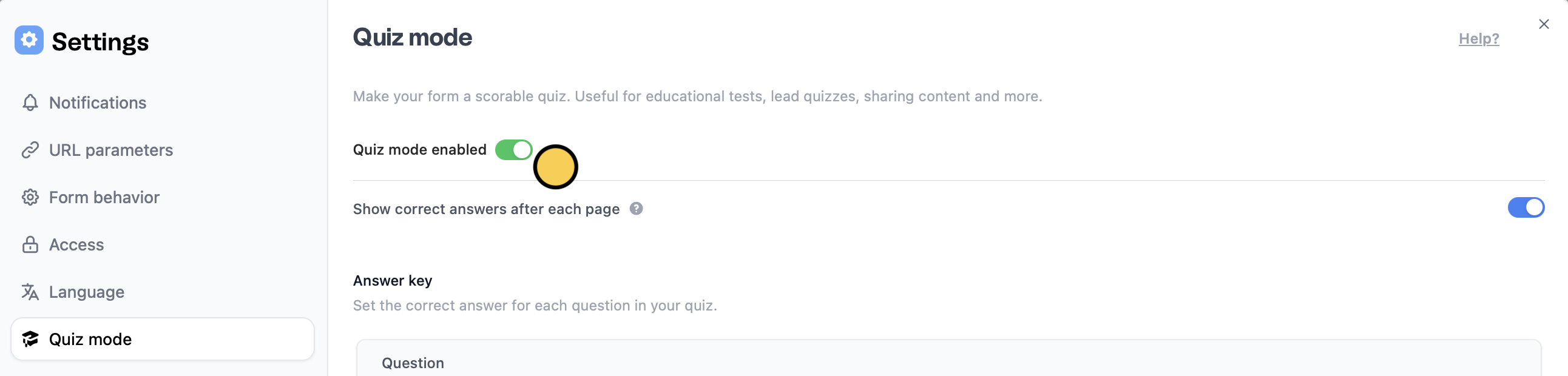
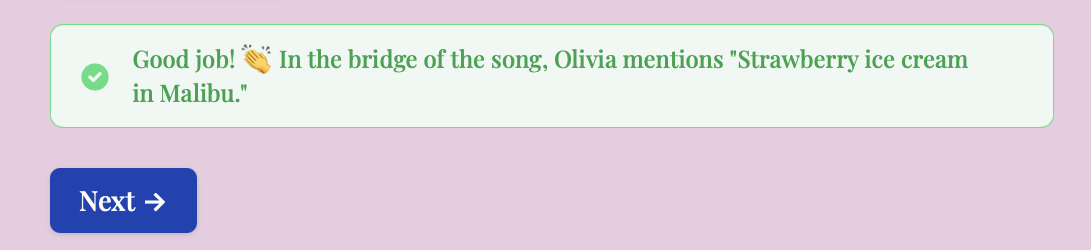
settings icon on the upper right area.Quiz mode in the left-hand panel to toggle the Quiz mode enabled switch.Enabling Show correct answers after each page will disable the back button, so respondents can’t go back and change an answer after seeing the correct one. When this setting is off, the back button is visible and respondents can change their answers, but correct answers aren’t shown anywhere, even after submitting. To show them, list the correct answers on your ending page.
2
Add your questions
Drag and drop the quiz questions you’d like to use from the left-hand panel to your form. Select from dozens of different types.
3
Set up scoring
Assign score values to each question. Fillout automatically tallies the scores for you. Click a question followed by the 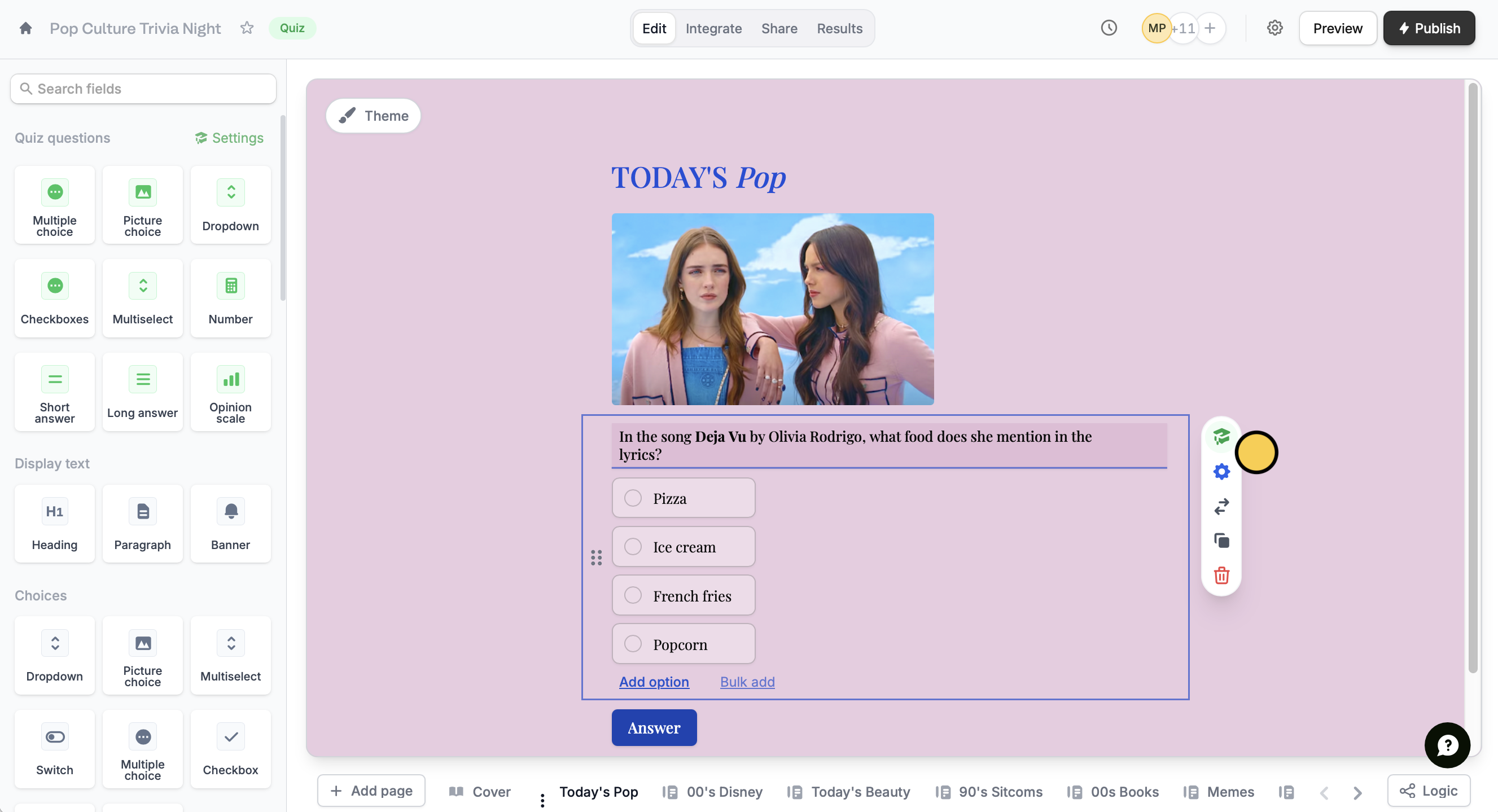
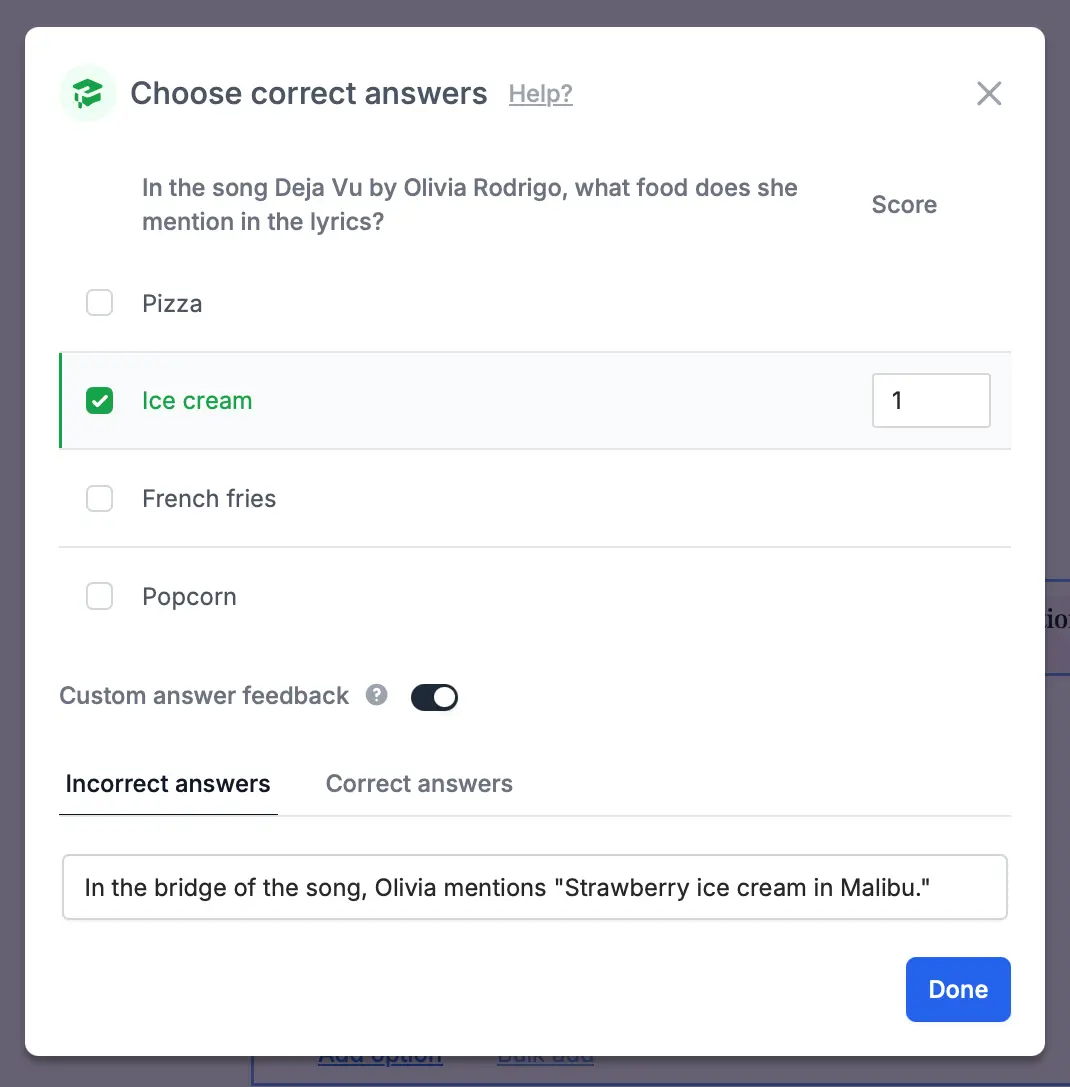
graduation cap icon .- Dropdown and Multiple choice: Assign a score to each option individually (e.g. Option 1 = 1 point, Option 2 = 2 points).
- Multiselect and Checkboxes: You can’t score each option. Mark all the correct options and set one score for the question. The respondent gets the score only when they select all the correct options.
- Picture choice: Works like a single select, with a score for each option. If
Can select multiple?is on, scoring doesn’t work. - Ranking: Scoring isn’t supported.
Custom answer feedback and toggle the Show correct answers after each page option in your form settings (step 1).4
Customize the design
Now, the fun part! Customize the look and feel of your quiz with Fillout’s Form designer. Simply click 
Theme. For more options, scroll down and open the Advanced Designer.5
Publish and share
Once your quiz is complete, click
Publish on the upper right corner and share the link or embed it anywhere.You can also enable email notifications for whenever someone fills out your quiz. The respondent’s score will be included in the email.6
Review and analyze results
Fillout provides real-time reporting and analytics on your quiz results. You can view individual responses or analyze trends and patterns in the
Results page of your quiz.Advanced quiz features
Use weighted scoring Typically, you’ll assign a score of 1 for correct answers and 0 for incorrect ones, but you can also add weighted scores to give certain questions or answer choices more impact. Simply enter the desired score for each answer choice to apply weighted scoring.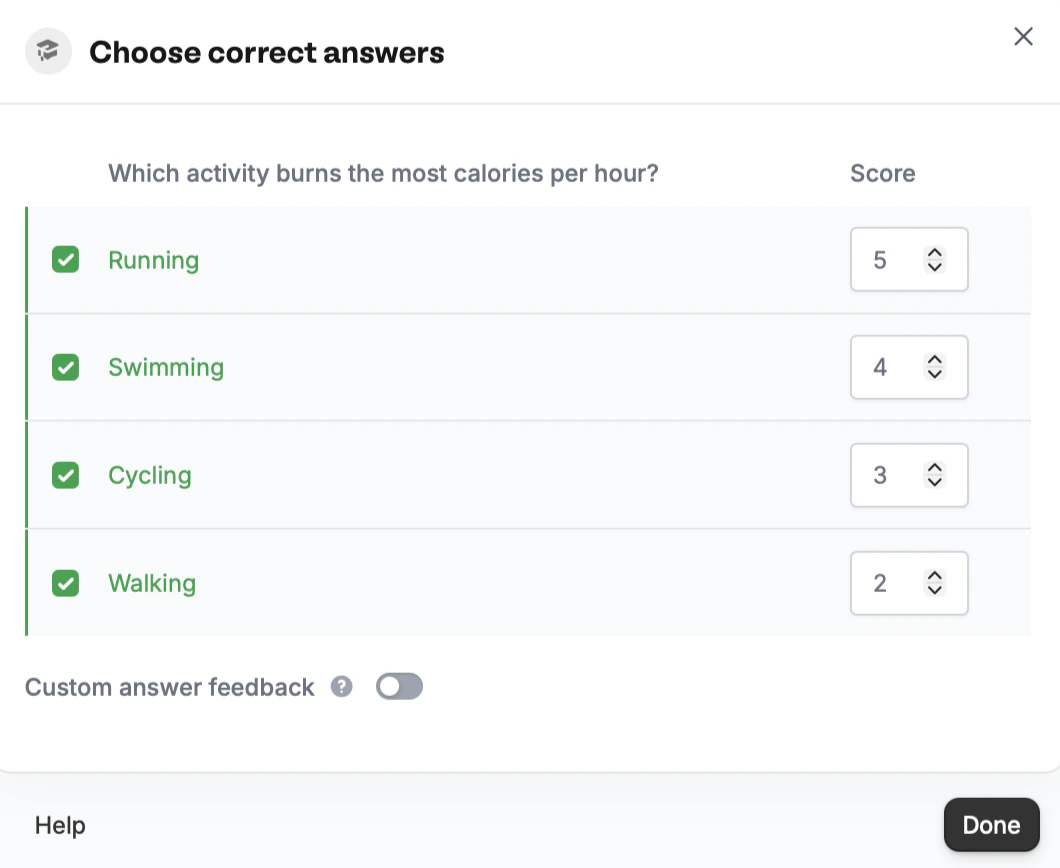
graduation cap icon followed by Score.
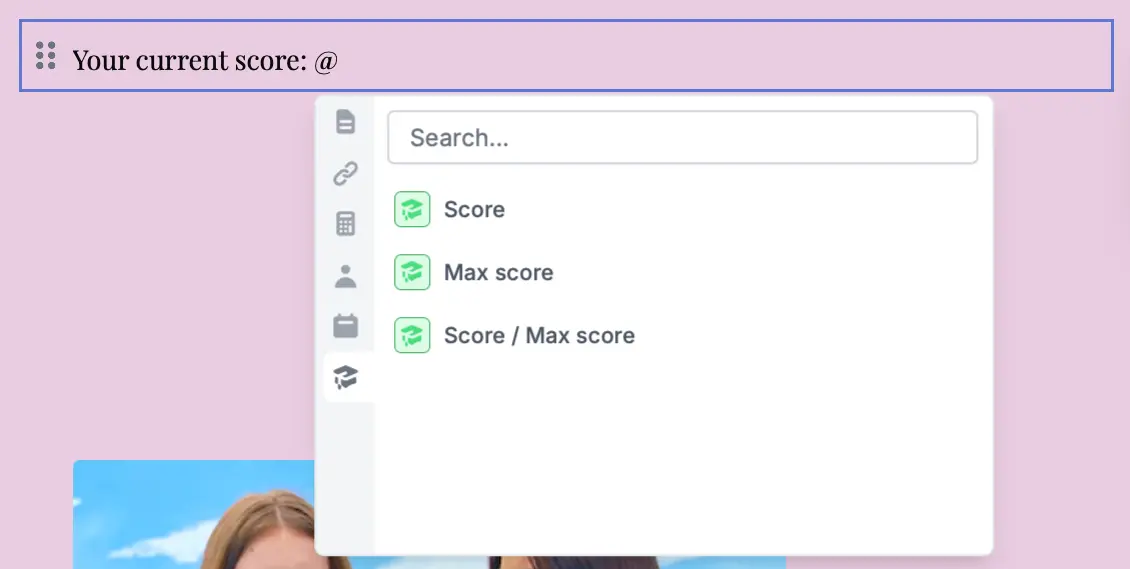
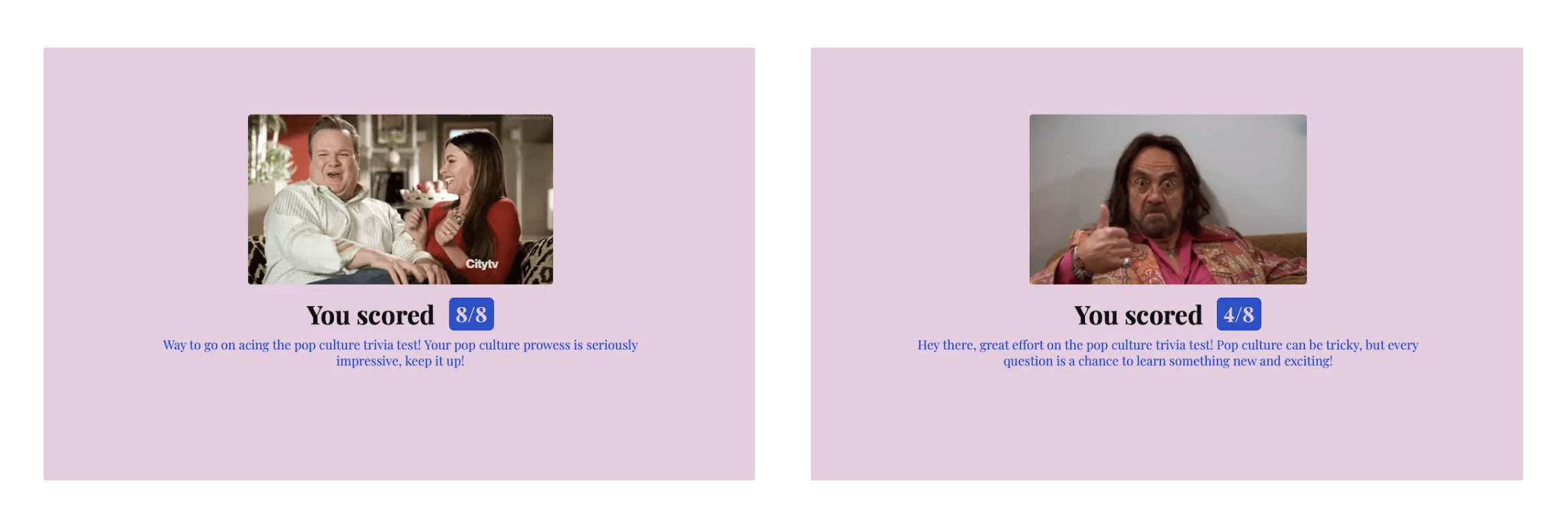
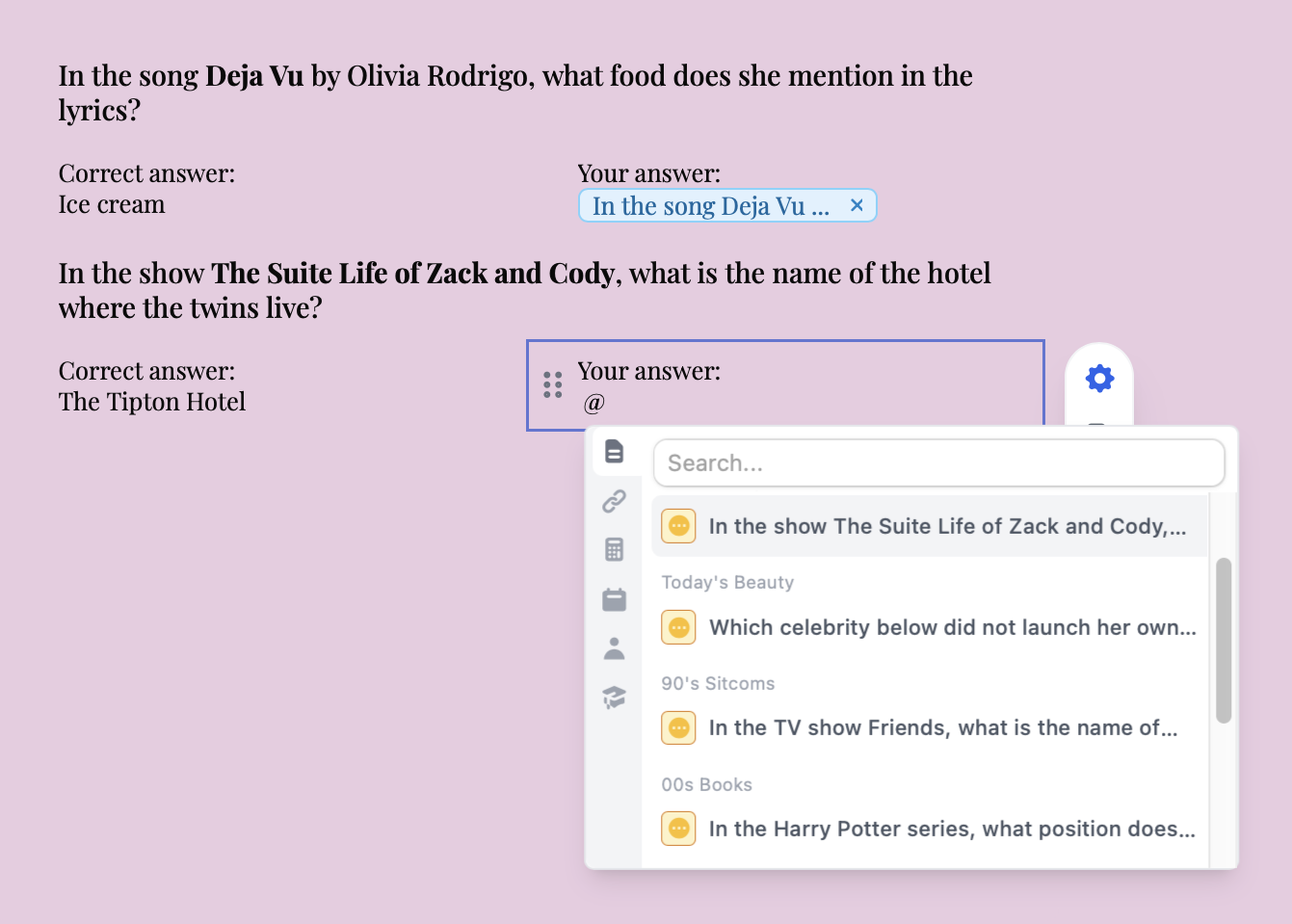
Set conditional logic.
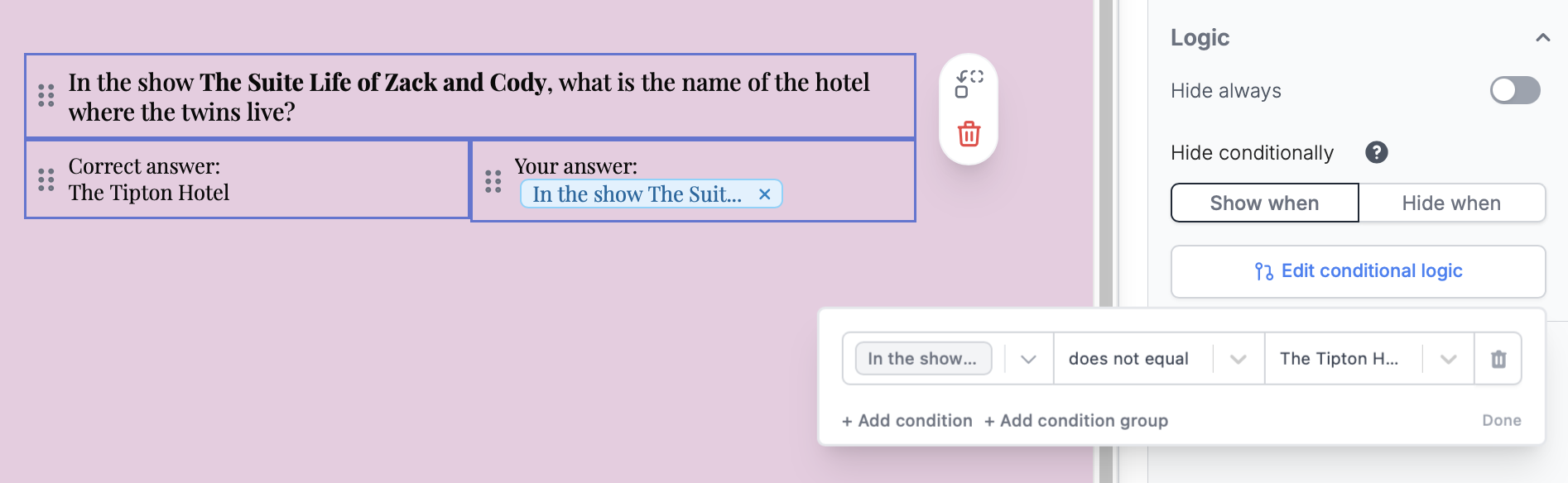
does not equal the correct answer.
AI Quiz Maker
You can create a quiz in a few seconds using a prompt. Check our quick guide here.FAQs
Can respondents retry a question they got wrong?
Can respondents retry a question they got wrong?
No. Once an answer is checked, it can’t be changed. Respondents can retake the whole quiz instead. Just add a Fill again button to your ending page.
Can my team use the same quiz?
Can my team use the same quiz?
Yes. Invite them to your organization so they can duplicate the quiz, or export it so they can import it into their own account. Logic, workflows, and notifications come along. They can update the notification emails to use their own address.
How do I reset quiz scoring?
How do I reset quiz scoring?
There’s no reset option. Turning Quiz mode off doesn’t clear scores, and they come back if you turn it on again. You can remove or adjust scores one by one, or:
- Duplicate the fields or pages. Duplicates have no scores.
- Set up the new scoring on the duplicates.
- Delete the original fields.
Related articles
Lead Quizzes
Use scoring, logic, and calculations to create dynamic outcomes.
AI Quizzes
Create quizzes with the AI Quiz Maker and use ChatGPT.