

What is Dropbox?
Dropbox allows users to store documents, photos, videos, and more in their personal cloud storage space, eliminating the need for physical storage devices.Video tutorial
How it works
1
Link your Fillout form to Dropbox
Go to Integrate from the top menu and click Dropbox.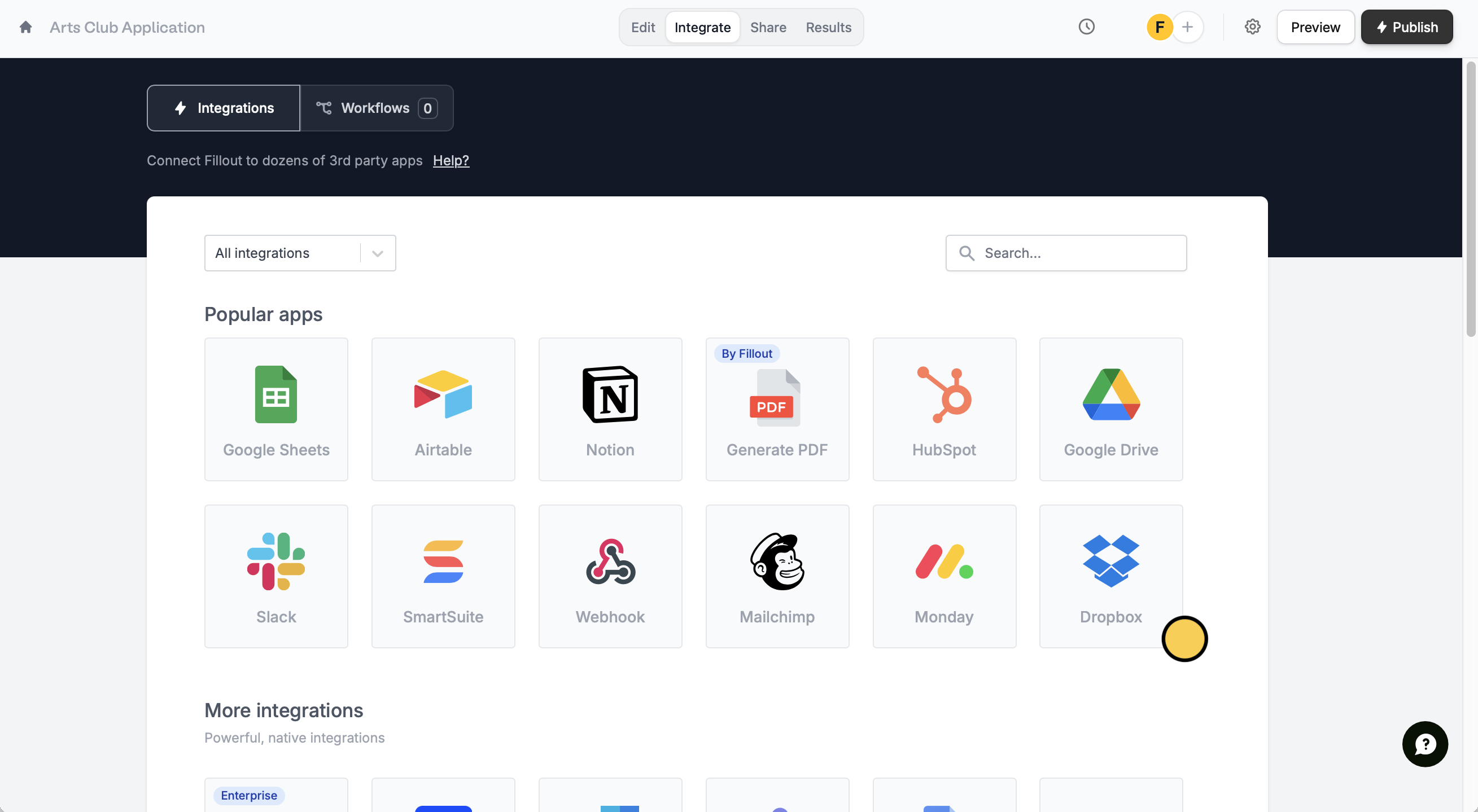
2
Map form fields
Choose which Folder you would like to store the files in. Under upload fields, click + Add new and select a file upload field from your form.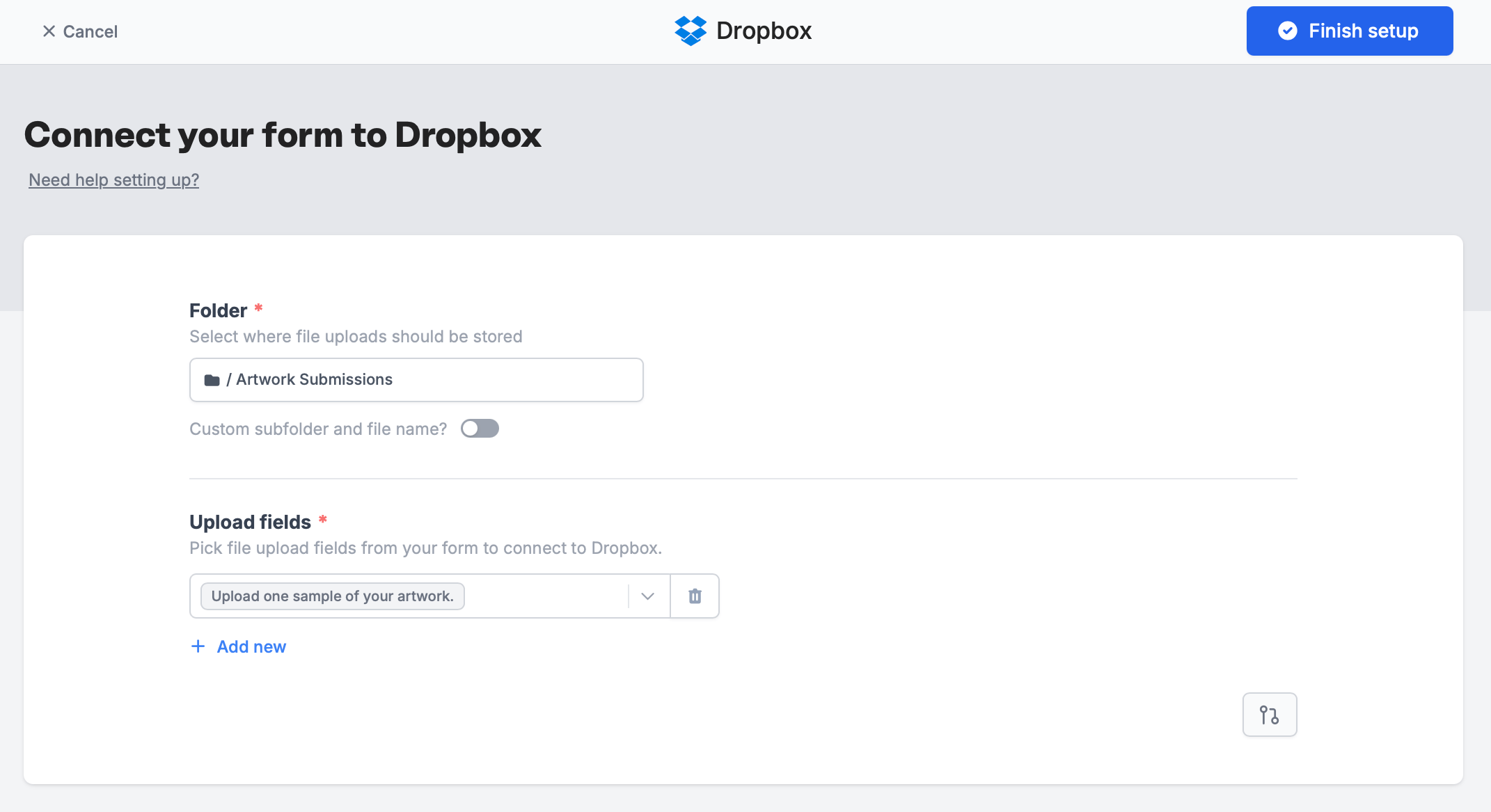
3
Publish and share
Once everything is set, click Finish setup on the upper right corner. Then, Publish your form and share the link.
Add a dynamic file path
Categorize file uploads into folders based on respondent input. Toggle the Custom subfolder and file name? switch, then select a Folder path fragment. Enter text or click the plus icon to map a field in your form. Let’s choose “Name” for this example.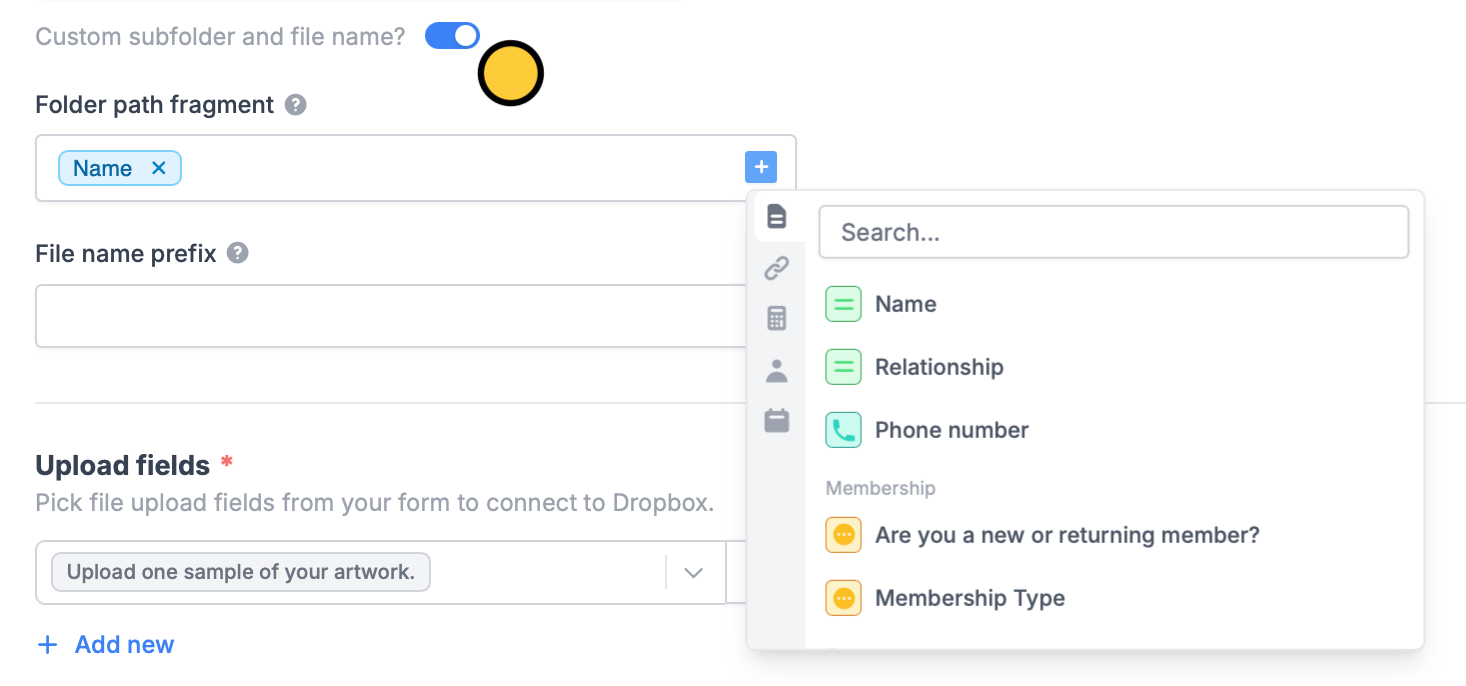
Add subfolders
You can add a subfolder by typing / followed by a name of your choice.
Personalized filename prefix
Similar to the steps above, enter text or click the plus icon to reference a form field.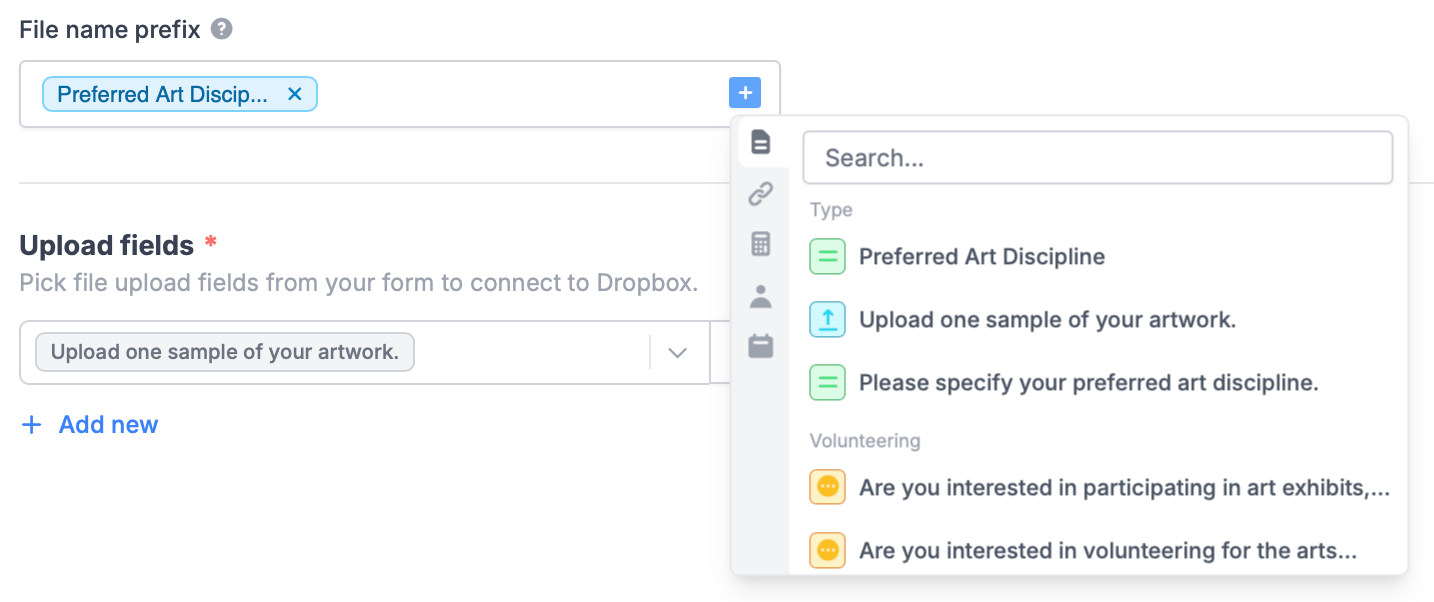
Related articles
Upload files to Google Drive
Automatically upload files with a form.
Sync files to Microsoft OneDrive
Automatically upload files with a form.
Sync responses to Monday
Use a form to create leads and more.