

Video tutorial
How to send your form via email
1
Go to the Share page
Click 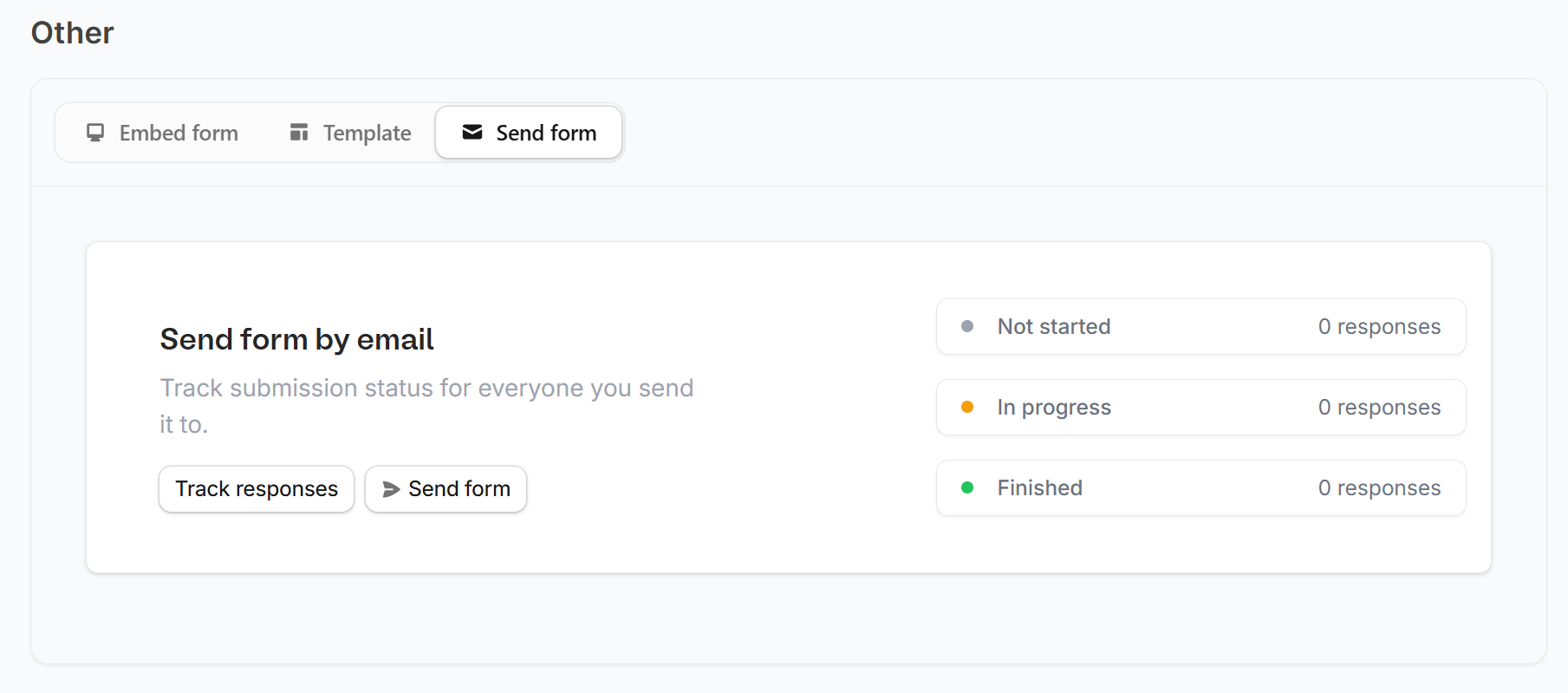
Share on the top menu. Under Other, click the Send form tab, then click Send form.2
Edit the contents of your email
Edit the default email and style it. Then, click
Set Recipients at the lower right of the popup.3
Set recipients and send
Under Send to, enter the emails of the people you want to send the form to. Choose who the email is sent from under Send email from, and edit the Subject if you like. Then, click 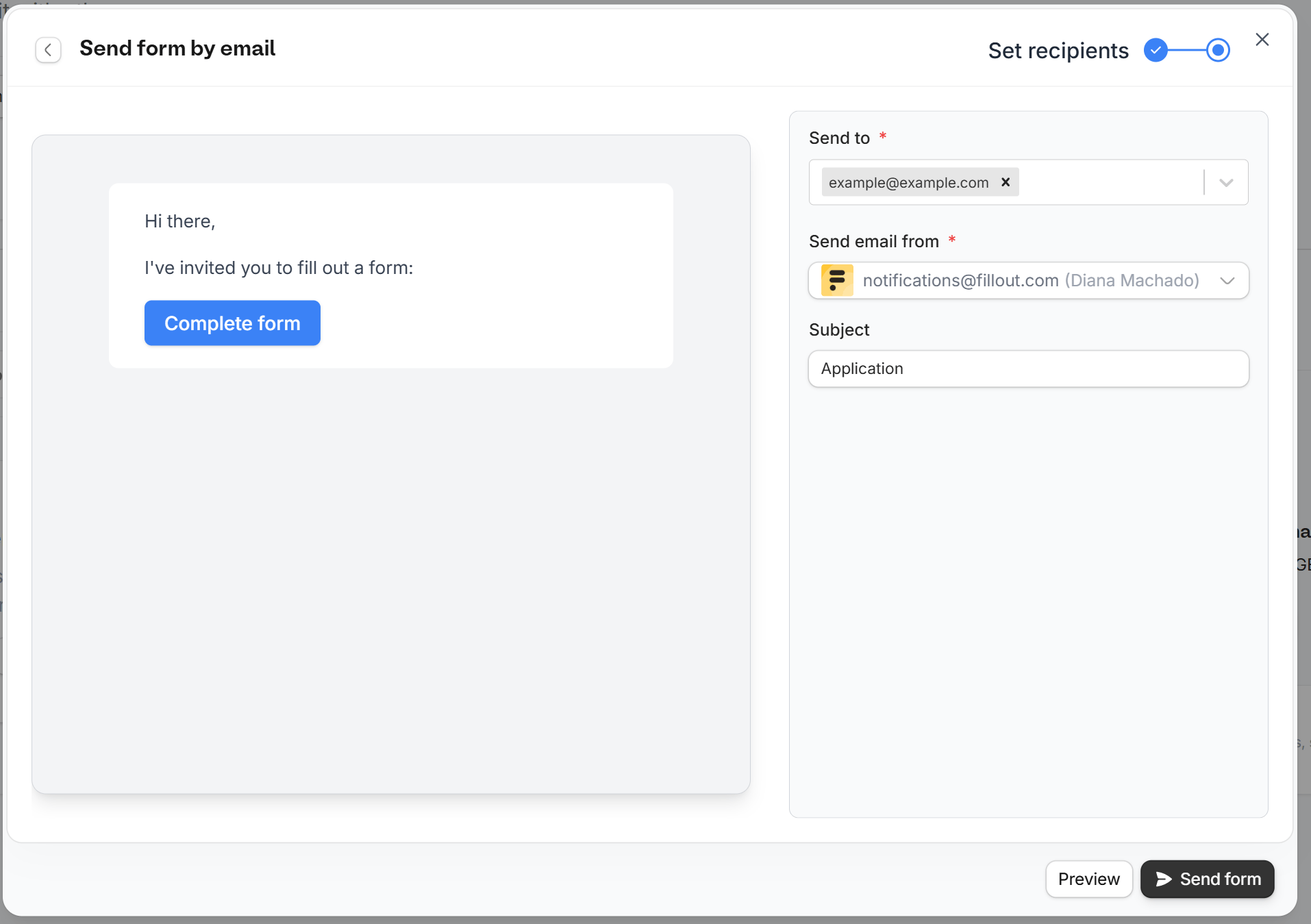
Send form.For organizations created before October 5, 2026, you can add up to 50 email addresses per hour as recipients in unverified accounts. If you verify your account, you can add up to 250 email addresses per hour.
4
Publish and share
When everything’s all set,
Publish your form to reflect the changes.Track responses
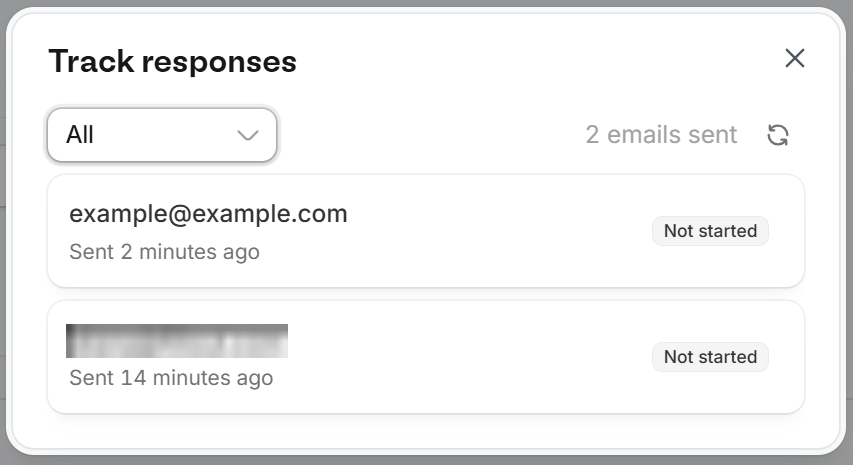
After sending your form, clickTrack responses in the confirmation popup to see who you sent it to.
Alternatively, you can go back to the Share page to do this. Here, you’ll see if a recipient has Not started, is In progress, or has Finished your form.
Automate form sending with Zapier
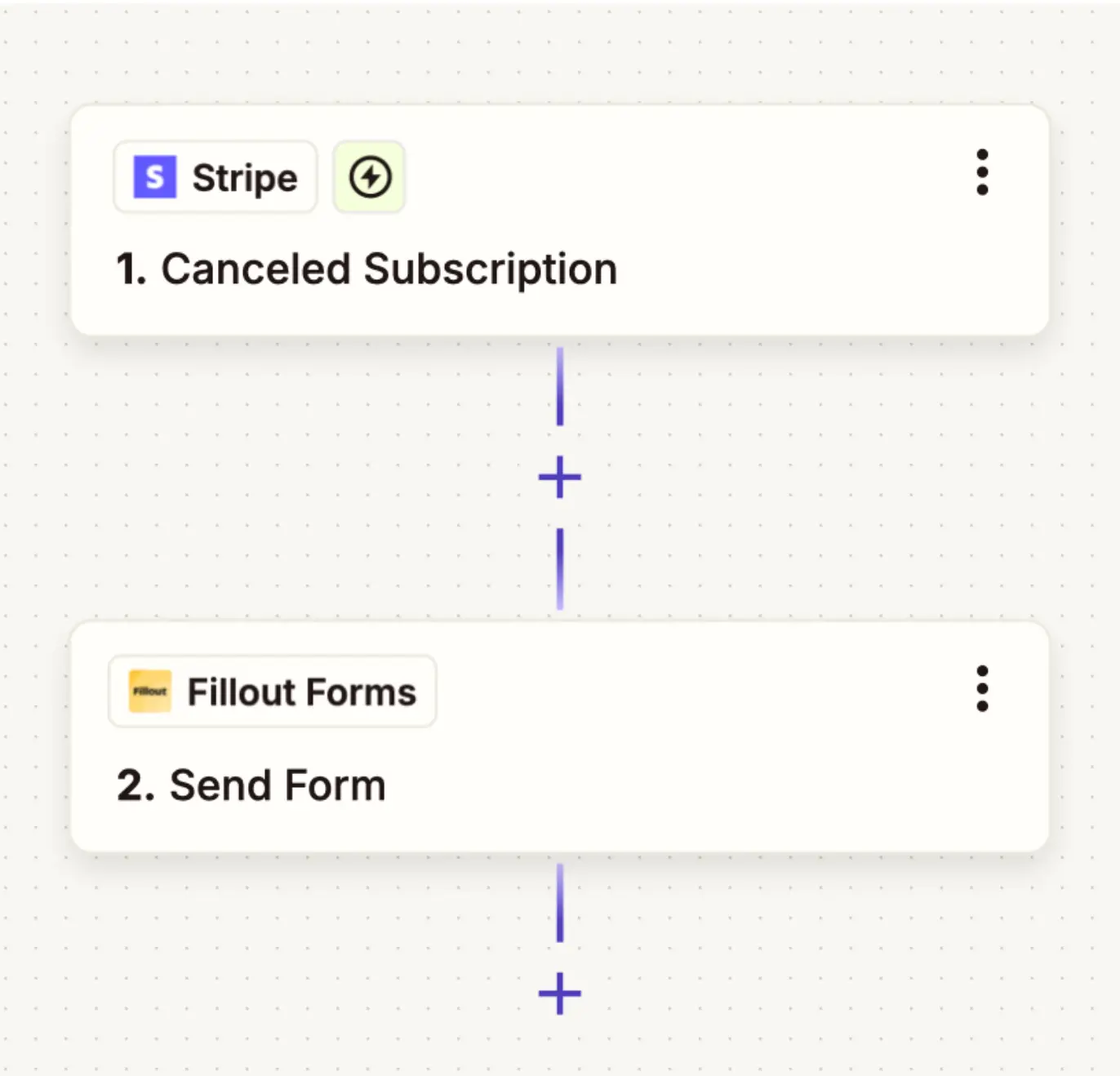
You can create a Zap to automate emailing forms. After connecting the necessary apps, select a Trigger. In this example, when a user cancels their subscription in Stripe, we’ll send a Fillout form, which would be the Action. ClickPublish when everything’s set.
Related articles
Email notifications
Get alerts for submissions or integration issues.
Respondent emails
Notify and email respondents a copy of their editable answers.
Automate with Zapier
Connect your Fillout form to hundreds of apps.