

How to remove team members
1
Open member settings
On the Fillout dashboard, click your 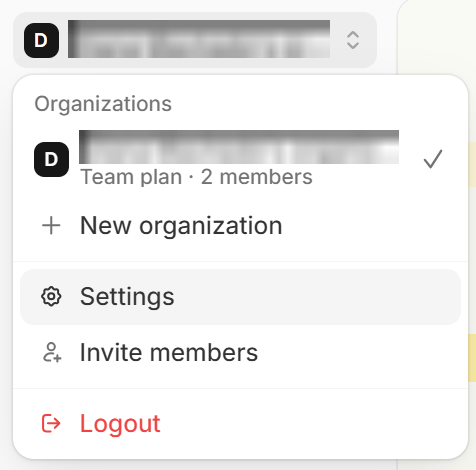
organization name in the upper left corner followed by Settings. Then, click Team members in the left-hand panel. Settings opens on this tab by default, but you may already be on another one.2
Select account
Click the account you want to remove.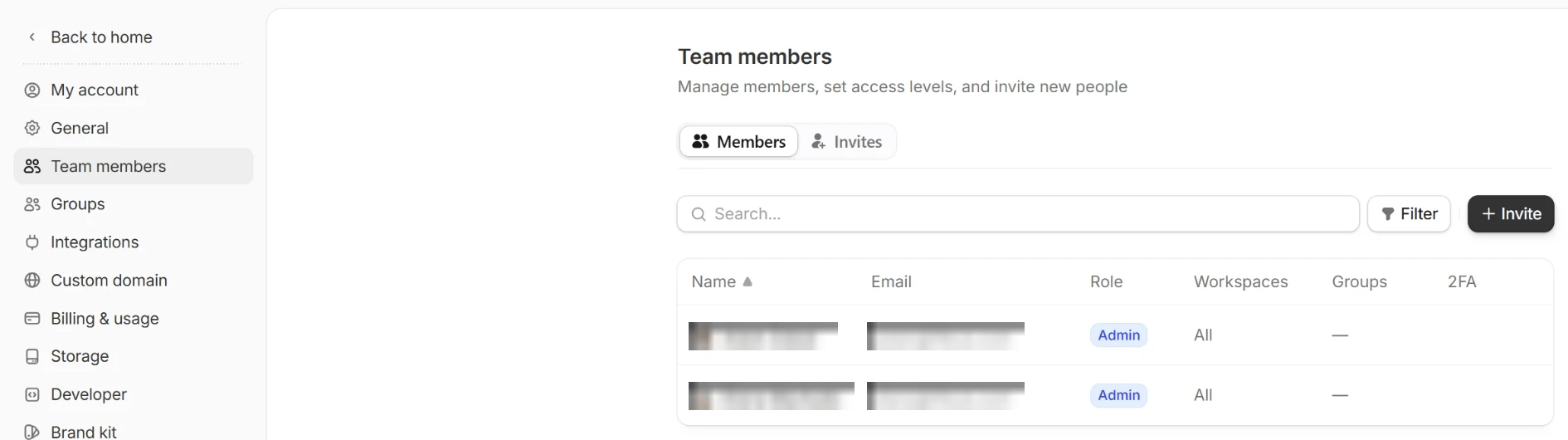
3
Remove account
In the popup, click
Remove to confirm. The member is signed out of your organization on every device right away.Add team members
Invite members directly from your dashboard. Check out this guide.
Update a member’s email
1
Open member settings
From the dashboard, click your
organization name in the upper left corner followed by Settings. Then, click Team members in the left-hand panel. Settings opens on this tab by default, but you may already be on another one.2
Select account
Click the account you want to update with the new email.
3
Switch email
Edit the email address and replace it with the updated email.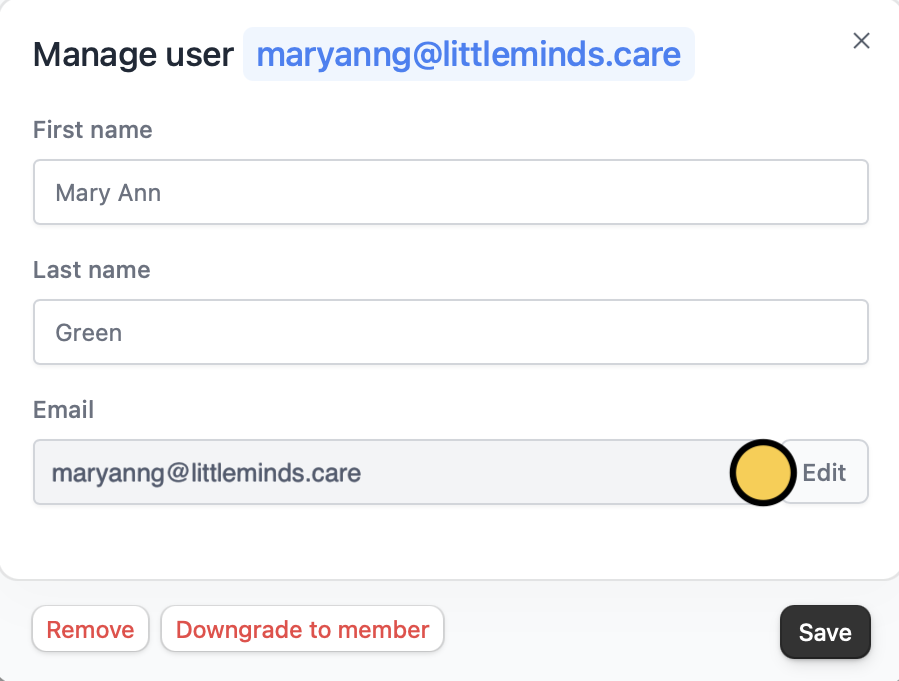
Updating a member’s email address only applies to your current org. It won’t change their email or affect their access in other separate orgs.