

Overview
There are two types of workspaces:- Classic workspaces hold Fillout forms. New Classic workspaces can only contain forms. Older Classic workspaces may also contain apps and databases that haven’t been migrated yet.
- Workspaces (connected workspaces) hold apps and forms built on a single shared database. We recommend connected workspaces.
Create a workspace
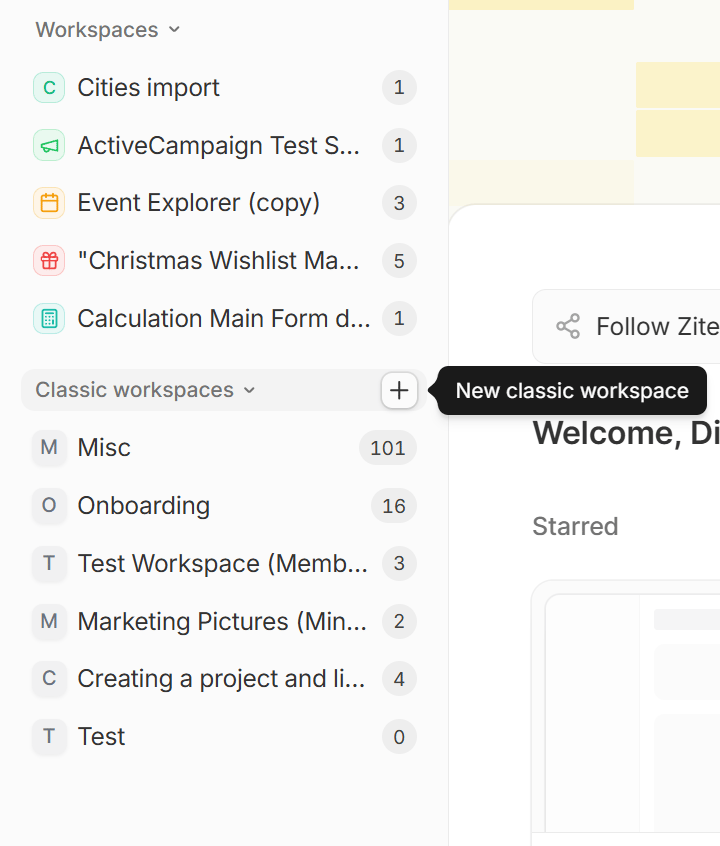
The side menu on your dashboard lists connected workspaces under Workspaces and Classic workspaces under Classic workspaces. The Classic workspaces section only shows up when you can see at least one Classic workspace. Organization admins see every Classic workspace in the organization. Other members see the ones they’re a member of, and the ones with at least one form they can access. If your organization has turned off database creation, the section shows up even when it’s empty, so you can still make one.On the Free plan, only organization admins can create Classic workspaces. For other members, the
New classic workspace button is turned off.From the side menu
If you see Classic workspaces in the side menu, hover over it and click theplus icon .
From a form’s Move to menu
If you don’t have any Classic workspaces yet, start from a form that isn’t in a workspace. Click thethree dots on the form, followed by Move to. Then, click the plus icon next to Classic workspaces.
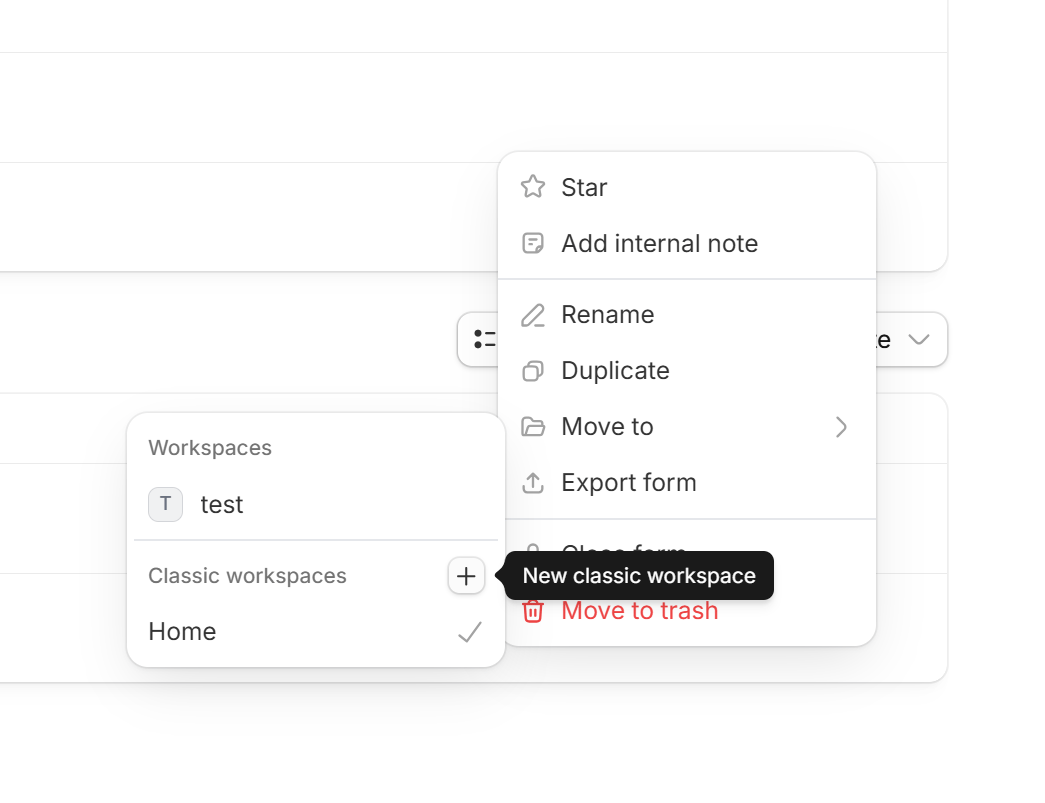
Create workspace, the form moves into your new Classic workspace automatically. If you selected several forms, they all move. Once you have a Classic workspace, the Classic workspaces section shows up in your side menu.
Name your Classic workspace
In the New classic workspace window, enter a name and clickCreate workspace.
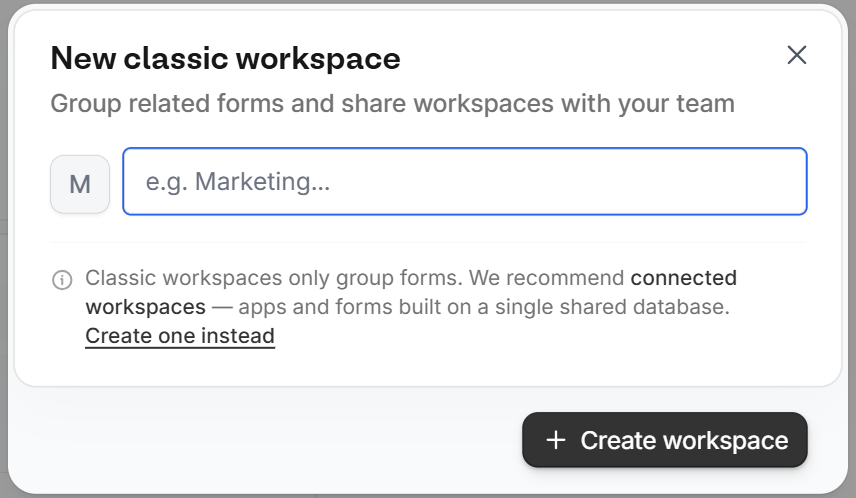
Create one instead at the bottom of this window, or click the plus icon next to Workspaces in the side menu. When you open this window from the Move to menu, the Create one instead link isn’t shown.
After you click Create workspace, you’ll be redirected to your new Classic workspace, which you can also access from the left-hand panel.
Add a form to a workspace
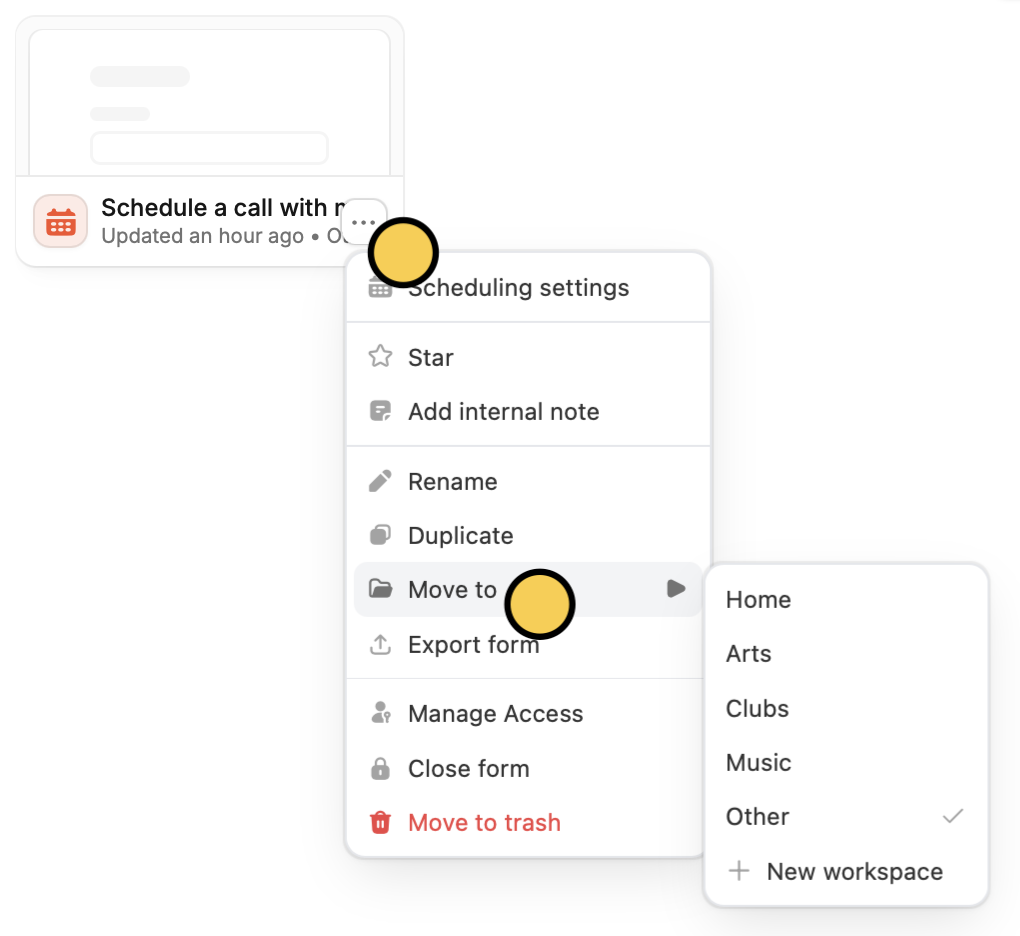
Click thethree dots on the form, followed by Move to. Then, choose the workspace you’d like to add the form to.
Remove a form from a workspace
If a form is connected to a workspace database, you can take it out of the workspace from the form’sIntegrate tab or from the workspace page. See Disconnect a form from its workspace.
Related articles
Invite team members to your forms
View results, and edit forms with free seats.
Import and export forms
Transfer between different accounts.
Organizations
Create organizations for different companies with the same email.