

What is Zite Database?
Zite Database is a no-code database that combines the flexibility of a database with the familiarity of a spreadsheet. It lets you store, organize, and manage data from your forms and other tools without writing code. By connecting Fillout to Zite Database, you can:- Organize submissions across multiple tables
- Combine responses from multiple forms into one centralized database
- Create different views of your data without changing the original records
- Pre-fill forms with existing database records to save time and improve data accuracy
- Let respondents select from database records similar to a dynamic dropdown
- Automatically calculate totals, scores, and other values using database formulas
- Use your database as a lightweight CRM, project tracker, client portal, and more
What syncing supports
When your Fillout form is connected to a Zite Database, you can:- Create new records from form submissions
- Update existing records with form data
- Pre-fetch existing data into forms
- Use login forms to sync data
Link your form to a Zite database
1
Connect Zite Database
Open your form and click the 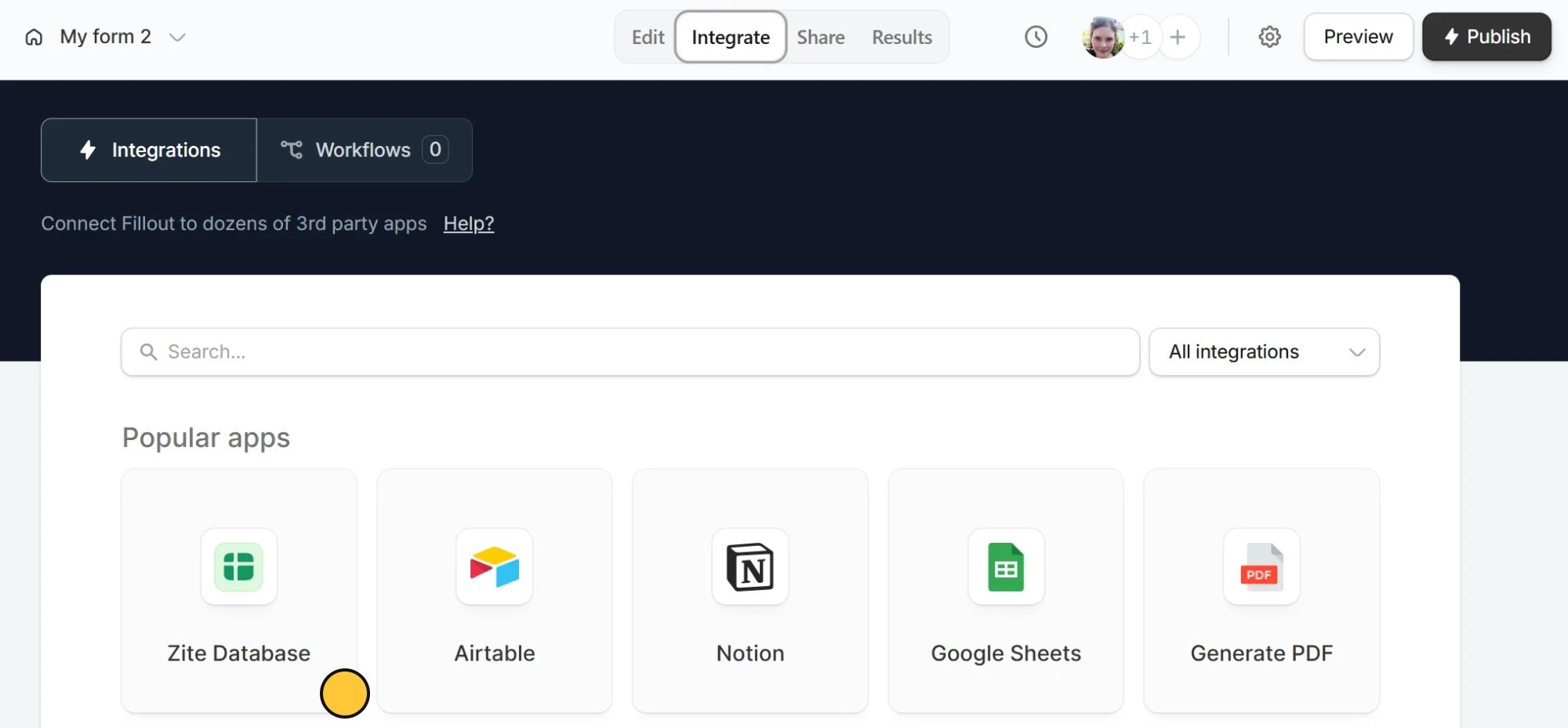
Integrate tab at the top. Select Zite Database from the list of integrations.Results on top followed by Link to database.A form can only connect to one database and table at a time. However, Google Sheets is an exception because each new connection creates a new sheet.
2
Choose database option
Pick New database to create a fresh database for this form, or use an Existing database.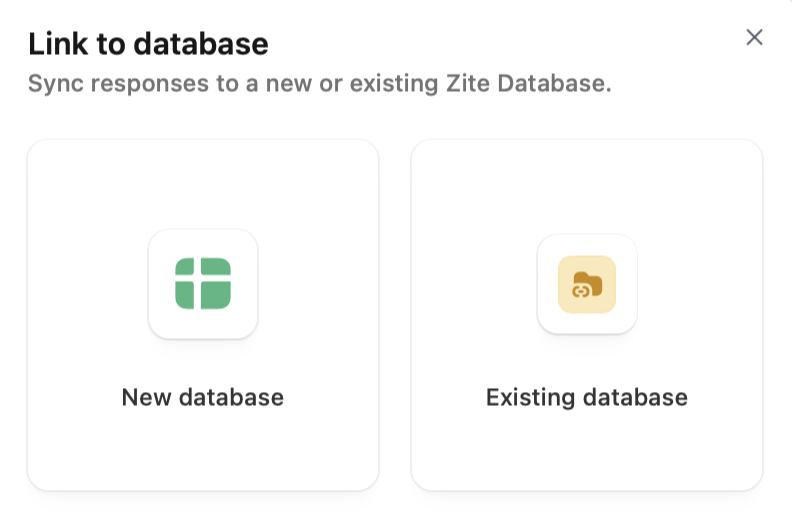
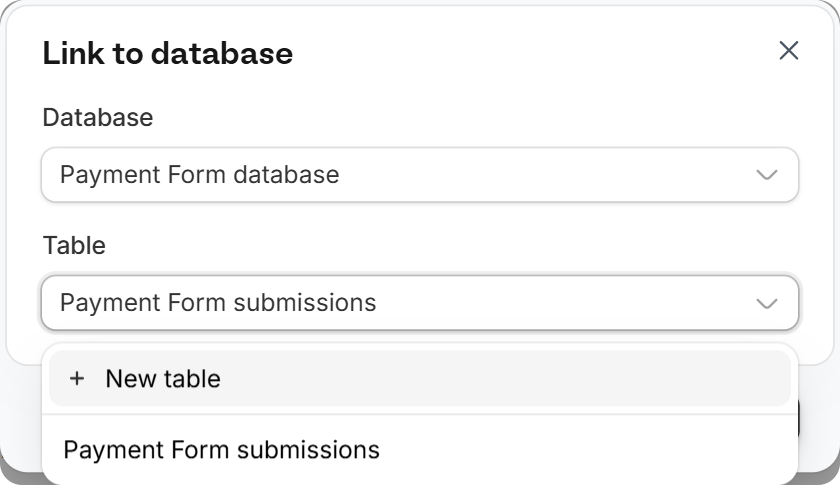
+ New table to create a new one for this form.3
Publish your form
Once you see Database linked successfully, click 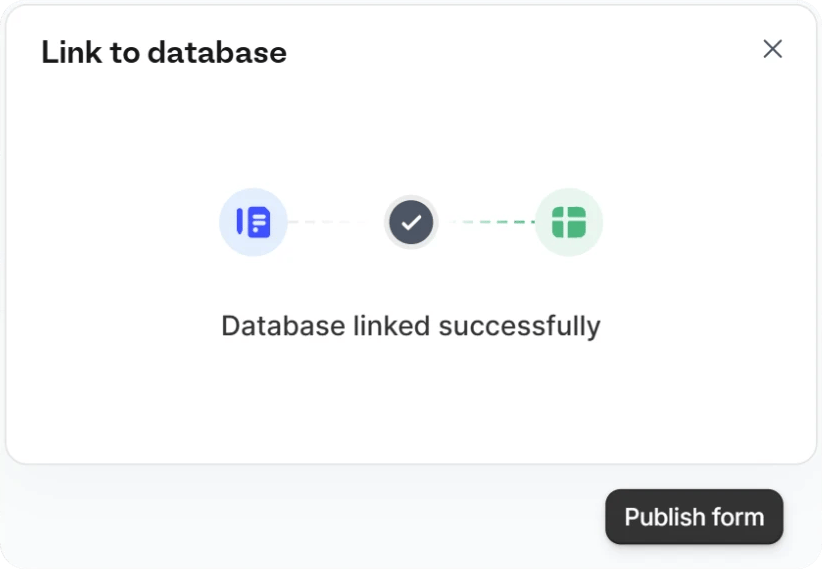
Publish form.4
View your data
Your form is now linked to a database! You can view responses in two places:
- From your form: Click the Results tab at the top where you can update or edit responses.
- From the database: Open your database and click the
Appsdropdown at the top. Linked forms are listed under Forms.
Link a database when you publish
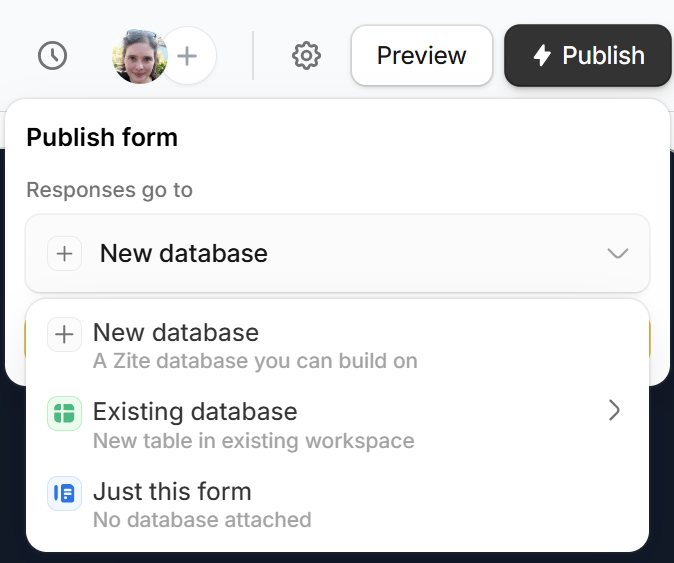
You can also connect a database the first time you publish your form. In the Publish form popover, open the dropdown under Responses go to and pick an option:- New database - responses are sent to a new Zite Database that you can build on.
- Existing database - responses are sent to a new table in an existing workspace.
- Just this form - no database is attached. You can link one later from the
Integratetab by following the steps above.
When a scheduling form creates a new table, the table also gets columns for each booking: the time, guests, meeting link, and host.
Publish.
Linking multiple forms
You can connect multiple Fillout forms to the same Zite database. All submissions from connected forms are stored in one place, making it easier to:- Combine related form submissions
- Create unified dashboards
- Streamline data management
Disconnect a form from its workspace
Disconnecting a form removes it from its workspace and stops new responses from being saved to the workspace database. You can do this from the form editor or from the workspace page.From the form editor
1
Open the Integrate tab
Open your form and click
Integrate at the top. The connected workspace database is shown under Database.2
Disconnect from the workspace
Click the 
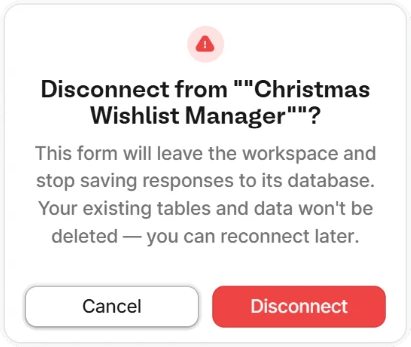
three dots on the database, then Disconnect from workspace.Disconnect.3
Publish your form
Click
Publish to save the change.From the workspace page
1
Find the form in your workspace
Open the workspace and scroll to Forms.
2
Remove it from the workspace
Hover over the form, click the 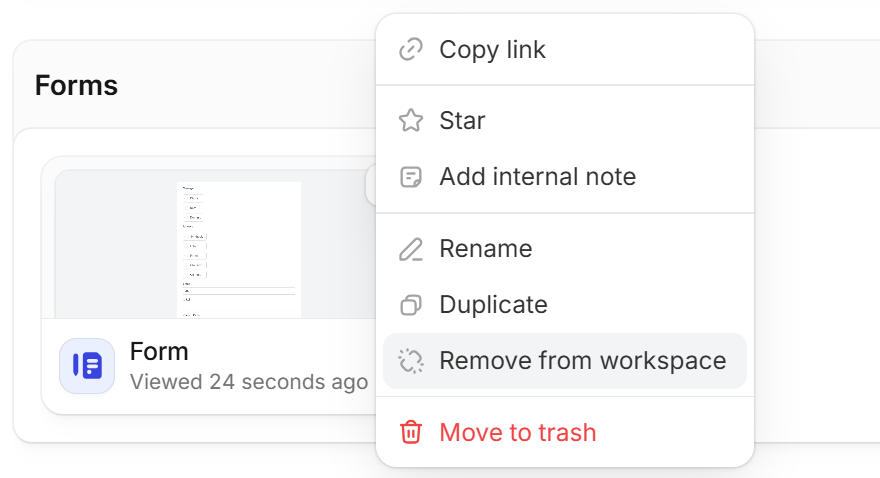
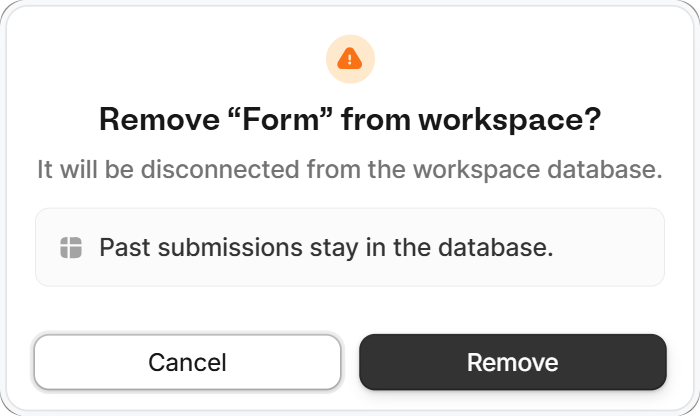
three dots , then Remove from workspace.Remove.What happens after
- New responses are no longer saved to the workspace database
- The existing tables and past submissions in the database aren’t deleted
- Past responses stay on the form’s Results page
- Everyone who had access to the form through the workspace keeps their access
Create a form with your database
If you already have a Zite database, you can create a form from it in a few minutes.1
Create a new form
There are two ways to create a form in a workspace that already has a database:
-
From the database: Click the
Appsdropdown at the top, then+ Create new...followed byForm.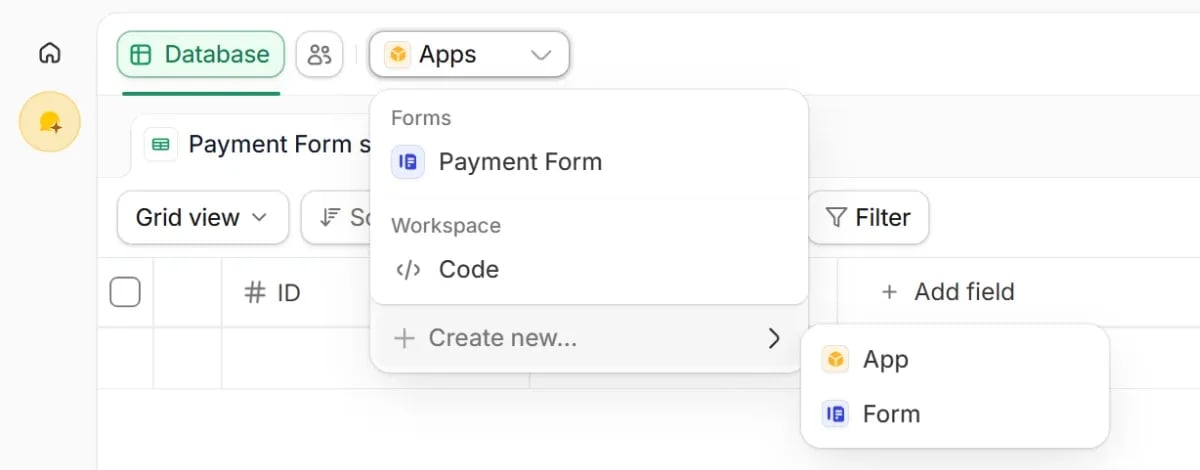
-
From the workspace page: Click
Newin the upper right corner, thenForm.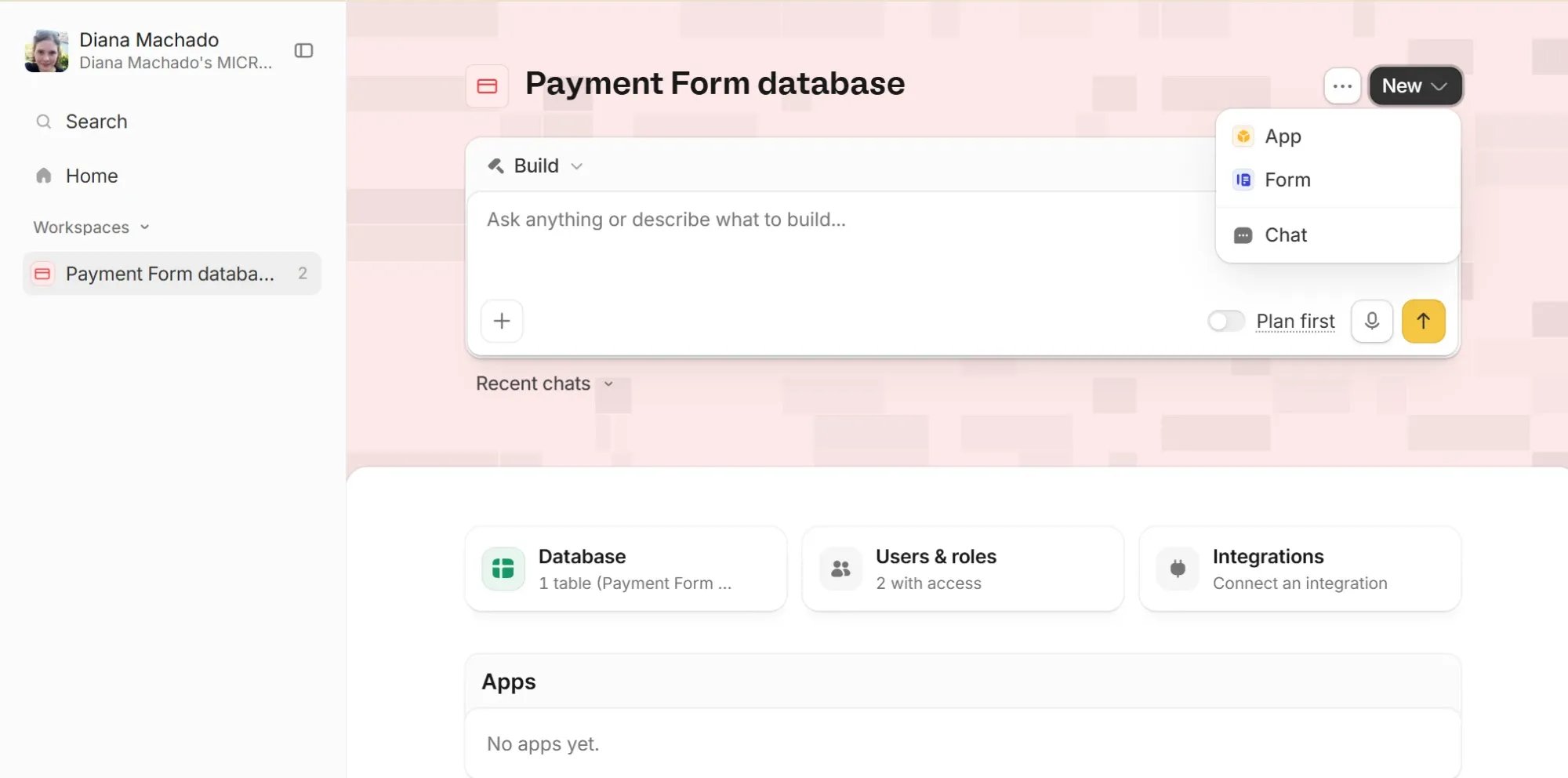
2
Choose a table and theme
In the New form dialog, pick the Table where you want to store form responses and a Theme for your form. Then, click 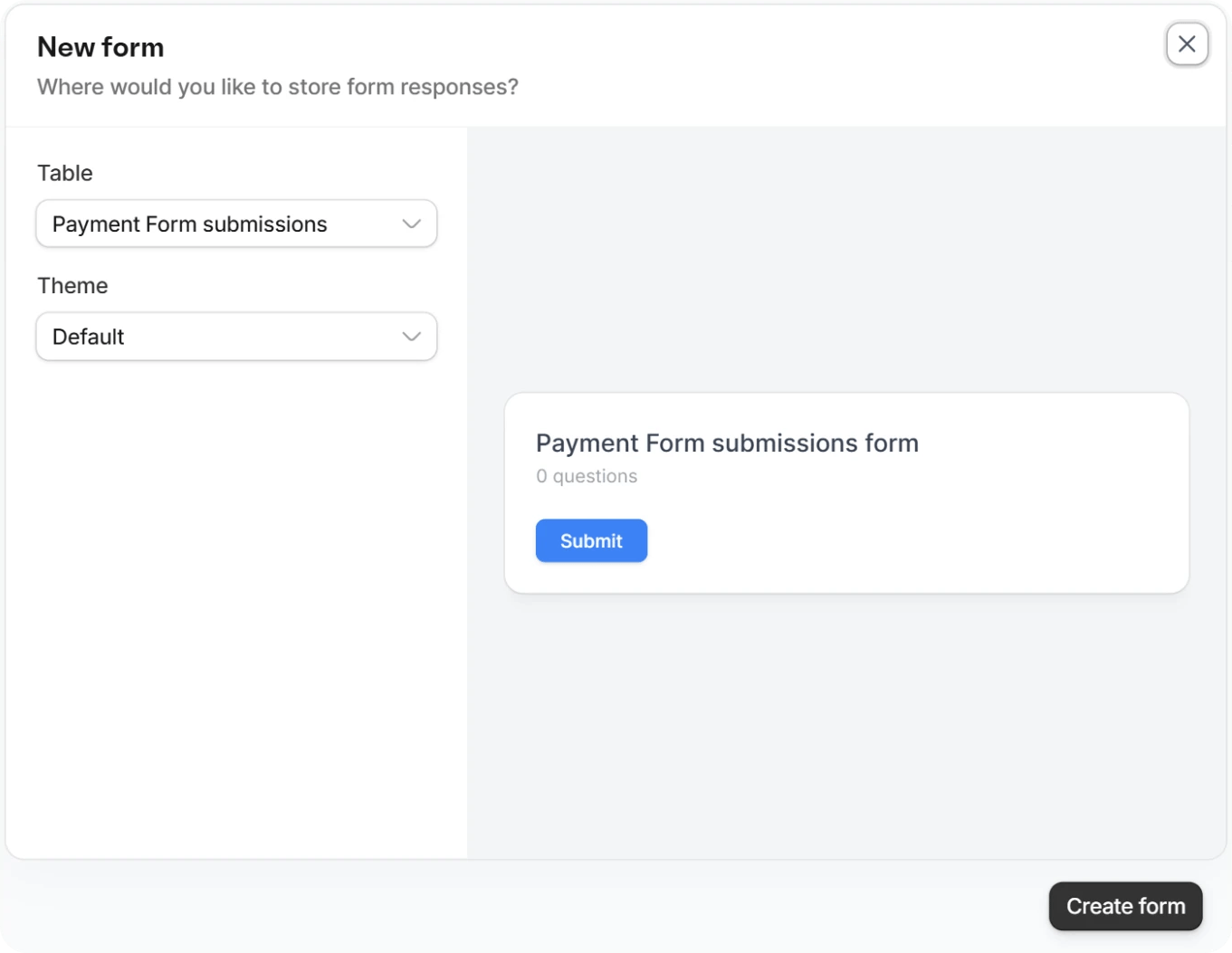
Create form.3
Edit your form
You’ll land straight in the form editor. Zite automatically builds the form for you, adding every column in your table as a field. Open Theme to style your form.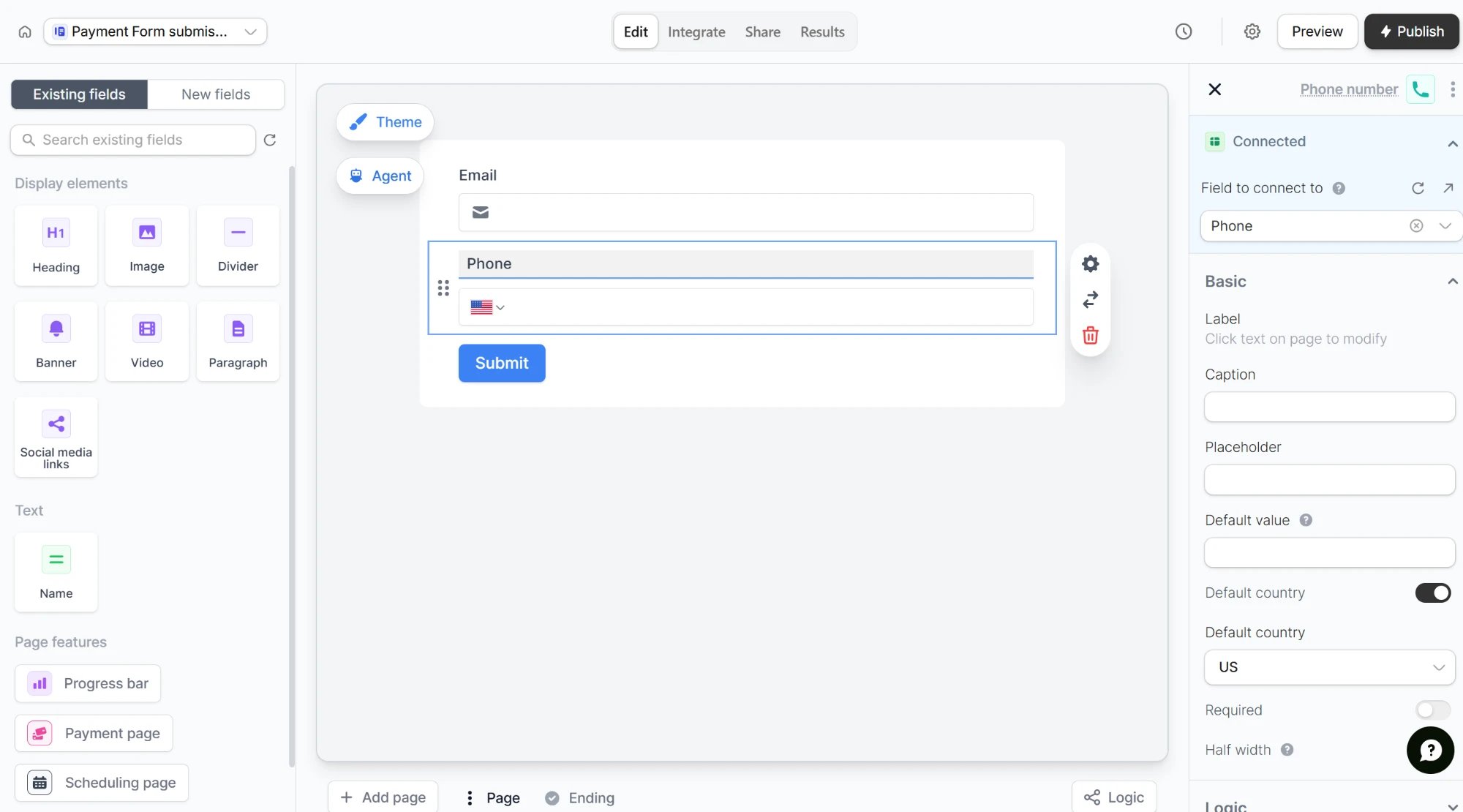
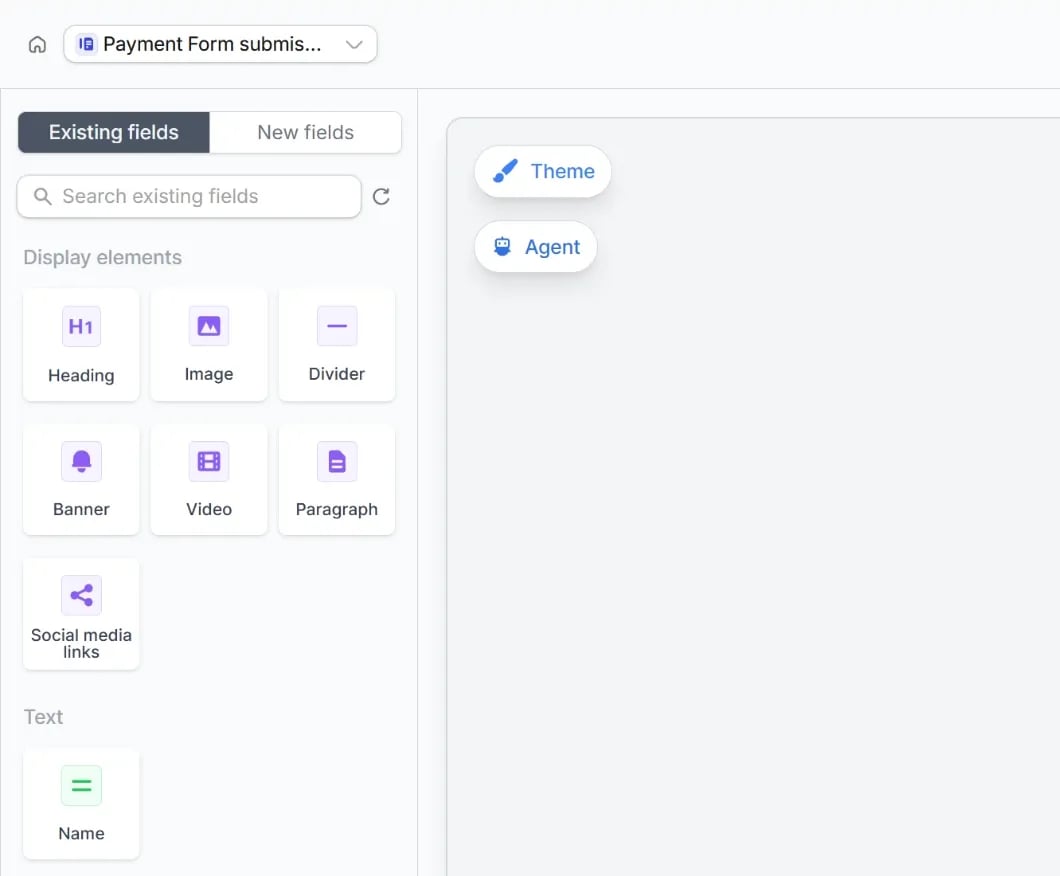

Existing fields tab in the left-hand panel. You can drag it back into your form anytime.Integrate tab.Add new fields
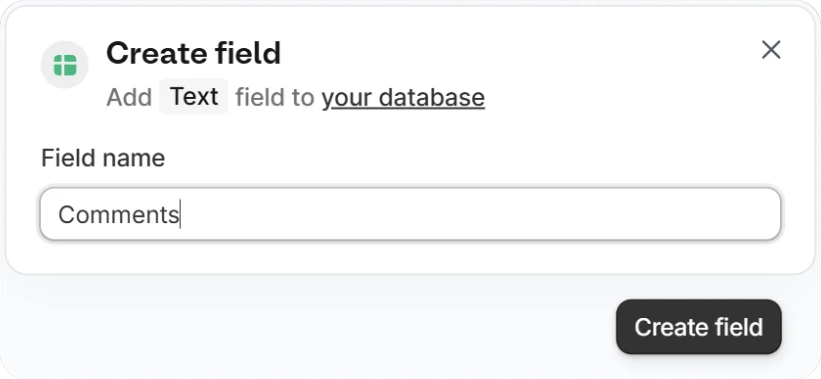
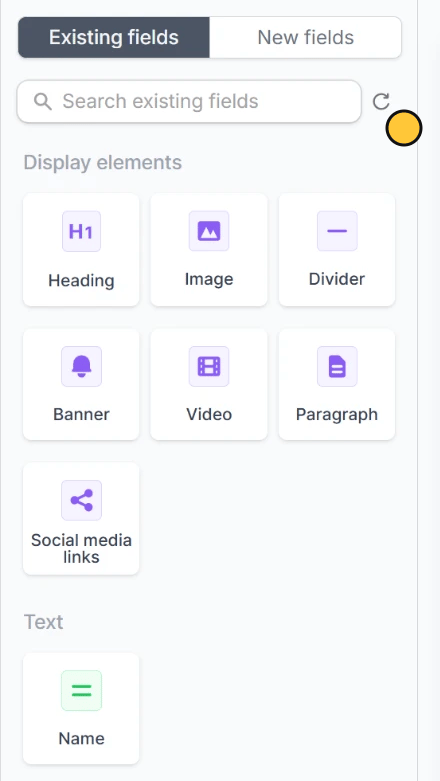
In theNew fields tab, click a Fillout field. In the Create field dialog, enter a Field name for the column that will appear in your Zite database, then click Create field.Existing fields tab, and click the refresh icon . Then, drag the new field into your form.Storage limits
These limits depend on your Zite plan, not your Fillout plan. Total attachment storage refers to the cumulative amount across all databases within an organization.
Size limits use decimal units, so 1 GB = 1,000,000,000 bytes.
Once a Fillout form is connected to a Zite database, each stored submission counts toward your Zite database record limit. If the form isn’t connected to a Zite database, submissions only count toward your monthly Fillout form submission limit.
For the size of files that respondents upload through a form, see the file upload limits, which follow your Fillout plan.
What happens next
Once linked, every form submission creates a new record in your database. You can:- View and edit responses directly in the database
- Add internal fields that aren’t collected through your form
- Enrich database records with custom fields, internal notes, and statuses
- Build apps on top of your form data
- Use the REST API to access your responses programmatically
Form responses sync instantly to your database. Any changes you make in the database won’t affect the original form submission.
Common use cases
By connecting Fillout with Zite Database, you can easily build workflows for things like:- CRM Systems: Manage leads, contacts, and customer interactions in one place
- Project Management: Track tasks, progress, and deadlines across teams
- Event Registration: Collect, organize, and update attendee information in a database
- Inventory Tracking: Monitor stock levels, updates, and product movements in real time
- Client Portals: Let users view and update their own records securely through forms
- Feedback Collection: Centralize responses and analyze them using views and formulas
Related articles
Update with forms
Edit existing Zite database records with a Fillout form.
Map columns
Send values to your Zite columns from a Fillout form.
Pre-fetch Records
Fetch data from your Zite database to pre-fill your Fillout form.